

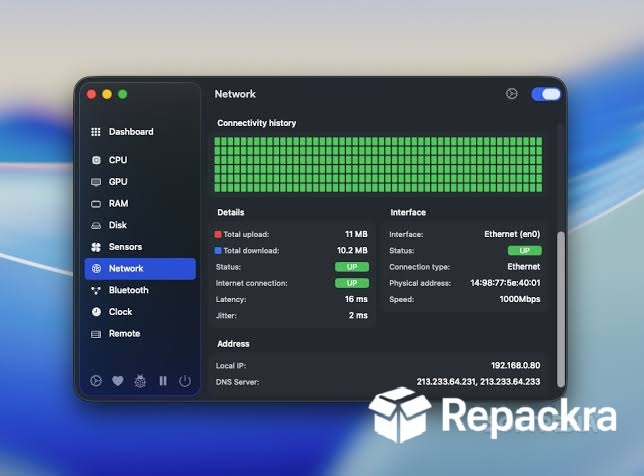
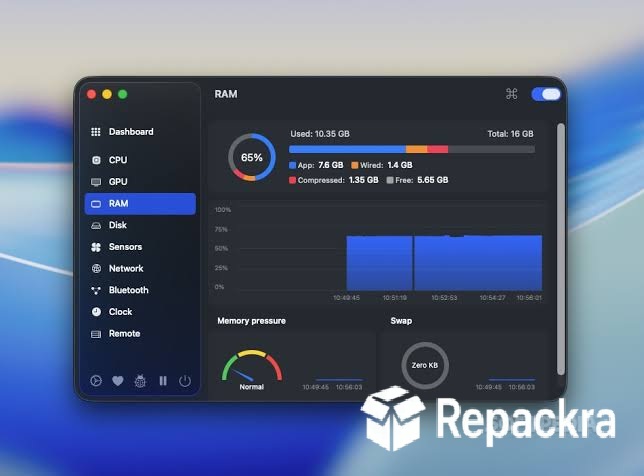
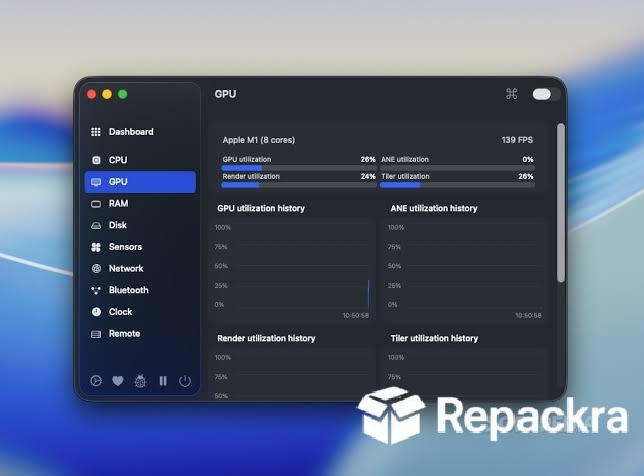
Stats for Mac is the system monitoring tool that puts everything you actually want to know about your Mac’s performance right in the menu bar where you can see it at a glance without opening Activity Monitor every time something feels slow or your fan starts spinning up. Version 3.0.11 brings a more refined and capable,
experience for anyone who likes having real time visibility into CPU, memory, network, and battery usage as part of their normal working environment. I keep it running because knowing what my Mac is actually doing at any moment makes troubleshooting and performance decisions genuinely informed rather than guesswork.
Stats Overview
Stats for Mac is a free and open source menu bar system monitor that displays real time information about your Mac’s CPU usage, memory pressure, disk activity, network throughput, GPU load, battery health, and more through a highly customizable set of menu bar widgets that you configure to show exactly what matters to your workflow.
It is lightweight enough that the monitoring itself never becomes a meaningful part of what it’s measuring and the information it surfaces is detailed enough to be genuinely useful rather than decorative. Stats for Mac is the system monitor that stays out of your way and tells you what you need to know.
Users who want to act on those temperature and fan readings rather than just watch them will find Macs Fan Control Pro for Mac a natural companion, taking the visibility Stats provides and turning it into actual manual fan control.
Key Features:
- Real time CPU usage and temperature monitoring
- Memory pressure and usage display
- Network upload and download throughput
- Disk read and write activity monitoring
- GPU usage and VRAM tracking
- Battery health and cycle count display
- Fan speed monitoring and control integration
- Highly customizable widget appearance and layout
- Completely free and open source
- Fully optimized for macOS Sequoia
What’s New in Version 3.0.11
- Improved Apple Silicon sensor accuracy
- Better memory pressure visualization
- macOS Sequoia compatibility fully resolved
- Several bug fixes and stability improvements
System Requirements
- macOS 12.0 or later
- 4 GB RAM minimum
- 20 MB storage space available
- Intel or Apple Silicon Mac supported
How to Install Stats on Mac
- Download Stats 3.0.11 for Mac.
- Open the DMG file.
- Drag Stats to your Applications folder.
- Launch Stats for Mac.
- Configure which widgets appear in your menu bar and customize their display.
How to Download Stats for Mac
- Visit the official Stats GitHub page.
- Click the latest release download link.
- Wait for the DMG file to finish downloading.
- Open Downloads and open the DMG file.
- Drag to Applications and launch.
Supported Websites
- Stats GitHub Official Page
- MacUpdate
- Softpedia
- Fosshub
- Filehorse
- Homebrew Package Manager
- 1000+ other trusted sources
Why Use Stats for Mac?
What makes Stats for Mac the go to menu bar monitor for so many Mac users is how much information it surfaces without making your menu bar feel cluttered or your Mac feel burdened by the monitoring itself. You can configure exactly which metrics matter to your workflow, choose between compact and detailed display styles for each widget,
and get a genuinely useful picture of what your system is doing at any moment without opening a separate application. The battery health display is particularly valuable for MacBook users who want to keep an eye on cycle count and capacity over time, and pairing that visibility with BatFi for Mac gives you the same kind of hands-on control over charging behavior that a fan monitor gives you over thermals.
The network throughput display is the quickest way to diagnose whether a slow experience is coming from your connection or your local hardware.
Stats vs Other Mac Monitoring Tools
| Feature | Stats | Others |
|---|---|---|
| Highly Customizable Widgets | Yes | Limited |
| Completely Free and Open Source | Yes | No |
| GPU and VRAM Monitoring | Yes | Limited |
| Battery Health and Cycle Count | Yes | Limited |
| Mac Optimized | Yes | No |








