

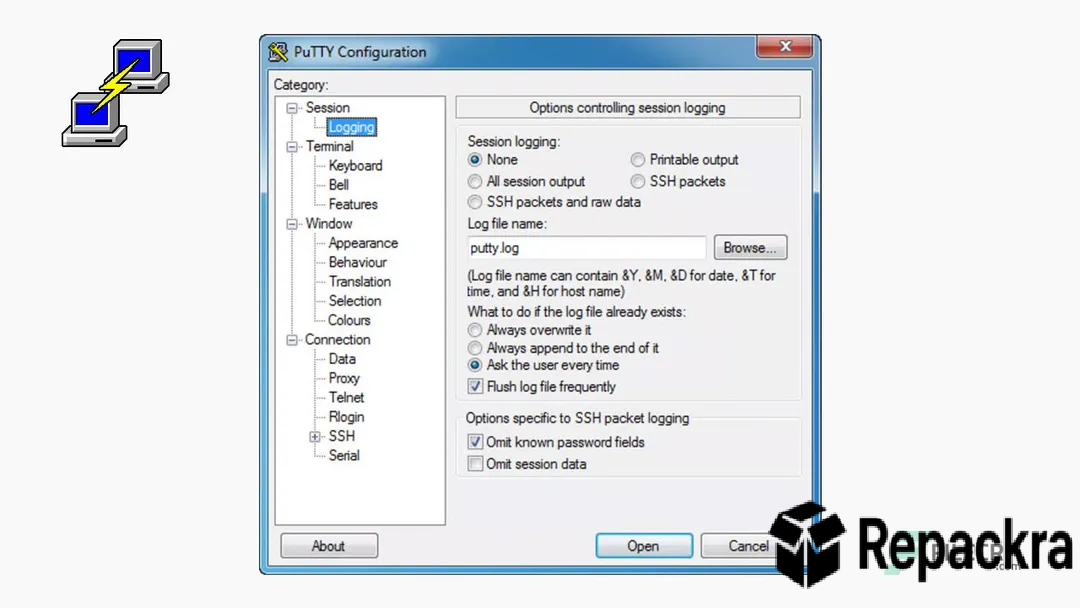
PuTTY for Windows is the SSH and terminal client that has been the default answer to the question of how to connect to a remote server from Windows for so long that it has become genuinely iconic in the sysadmin and developer community. Version 0.85 brings the latest security patches and compatibility improvements to a tool that millions of professionals rely on every single day without giving it much thought,
because it just works reliably every time. I keep it installed because when I need to SSH into something from a Windows machine, reaching for PuTTY is as automatic as any other reflex I have developed over years of working with remote systems.
System administrators who want a powerful scripting environment for automating the tasks they manage through PuTTY sessions will find PowerShell for Windows a natural companion, giving them object based scripting, remote management through WinRM, and a module ecosystem that covers virtually every infrastructure task they would otherwise handle manually.
PuTTY Overview
PuTTY for Windows is a free and open source SSH, Telnet, and serial console client that gives you a reliable terminal connection to remote servers, network equipment, and any other device that accepts these protocols from a Windows machine. It is lightweight, portable, requires no installation to run, and has been actively maintained with security updates for decades.
PuTTY for Windows is the terminal client that most Windows users never need to replace because it handles everything they actually need to do without any fuss. Professionals who also need to transfer files securely to and from the remote servers they connect to through PuTTY will find WinSCP for Windows a natural companion, providing a clean graphical SFTP and SCP client that integrates directly with PuTTY’s saved sessions and key configuration.
=
Key Features:
- SSH, Telnet, Rlogin, and serial connection support
- Session saving for quick reconnection to frequent hosts
- SSH key authentication with PuTTYgen key management
- Port forwarding for local and remote tunneling
- X11 forwarding for running graphical Linux apps
- Configurable terminal appearance and behavior
- Proxy server support for restricted networks
- Logging of session output to file
- Portable executable requiring no installation
- Fully compatible with Windows 10 and Windows 11
What’s New in Version 0.85
- Security patches applied across SSH implementation
- Improved compatibility with modern SSH server configurations
- Better handling of certain terminal escape sequences
- Several bug fixes and stability improvements
System Requirements
- Windows 7 or later, 64-bit recommended
- 1 GB RAM minimum
- 5 MB storage for the application itself
- Intel or AMD processor
- Active network connection for remote sessions
How to Install PuTTY on Windows
- Download PuTTY 0.85 for Windows.
- Run the installer file or use the portable executable directly.
- Follow the on screen installation steps if using the installer.
- Launch PuTTY for Windows.
- Enter your host address and connect to your first session.
How to Download PuTTY for Windows
- Visit the official PuTTY website at chiark.greenend.org.uk.
- Click the Download button for the Windows version.
- Wait for the installer or executable to finish downloading.
- Open Downloads and run the installer or executable directly.
- Follow any setup steps to complete installation.
Supported Websites
- PuTTY Official Website
- Softpedia
- MajorGeeks
- FileHippo
- Fosshub
- Filehorse
- 1000+ other trusted sources
Why Use PuTTY for Windows?
What keeps PuTTY for Windows the default SSH client recommendation after all these years is how dependable and frictionless it is for the core task of connecting to a remote server and getting work done. The session saving feature means your frequently used servers are a double click away without re-entering credentials, the SSH key support through PuTTYgen covers modern authentication requirements,
and the port forwarding capability handles database tunneling and other network routing needs that come up regularly in professional use. The portable executable means you can carry it on a USB drive and use it on any Windows machine without installing anything which is the kind of practical flexibility that earns a tool a permanent place in a professional toolkit.
Professionals who want a modern tabbed terminal experience for running multiple PuTTY sessions alongside PowerShell and WSL simultaneously will find Windows Terminal for Windows a significant upgrade, bringing GPU accelerated rendering, split panes, and a clean interface that makes managing multiple remote connections noticeably more organized.
PuTTY vs Other SSH Clients
| Feature | PuTTY | Others |
|---|---|---|
| Portable No Install Required | Yes | Limited |
| SSH Key Management Built In | Yes | Limited |
| X11 Forwarding Support | Yes | Limited |
| Session Saving System | Yes | Limited |
| Windows Optimized | Yes | No |








