

Windows Terminal for Windows is the modern command line experience that Microsoft should have shipped with Windows years ago and finally did, replacing the dated and limited console windows that made terminal work on Windows feel unnecessarily cumbersome for so long. Version 1.24.11911.0 brings a more refined and stable,
experience that continues polishing what has already become the standard terminal environment for developers and power users on Windows. I use it as my default terminal because having PowerShell, Command Prompt, WSL, and SSH sessions all in tabs within the same beautiful window changes the daily terminal experience in a way that’s hard to overstate.
Power users who want a fast and visual way to manage all their Windows software installations and updates from the command line will find Chocolatey CLI for PC a natural companion, turning package management into a single command that Windows Terminal makes more pleasant to run than any other console environment.
Windows Terminal Overview
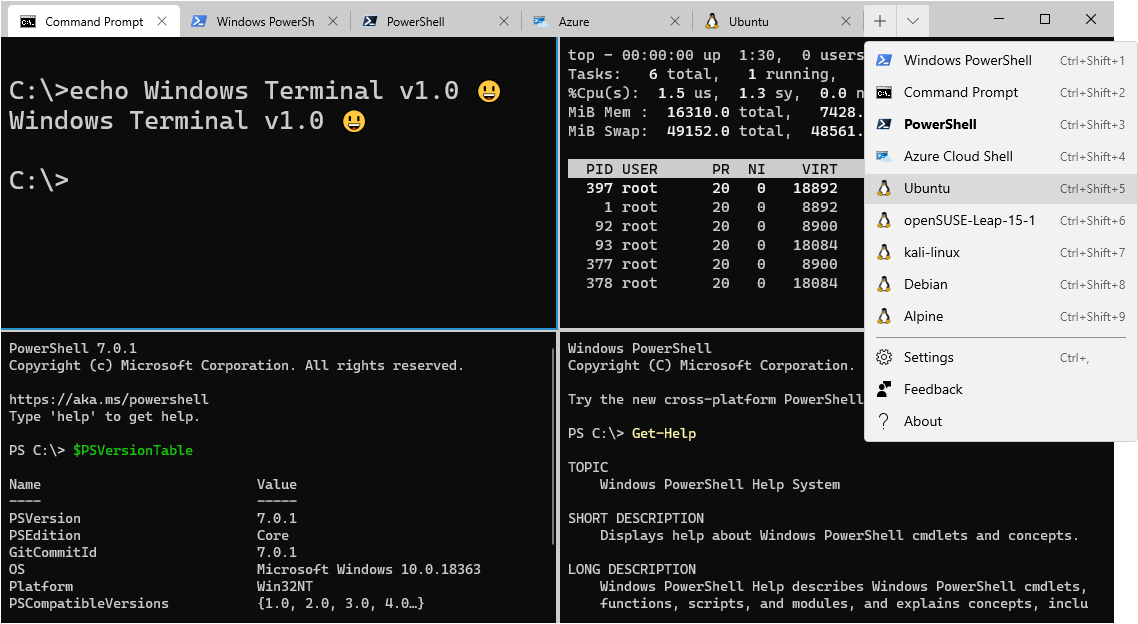
Windows Terminal for Windows is a modern and feature rich terminal application that supports multiple shells and command line environments through a tabbed and pane based interface with GPU accelerated text rendering, customizable themes, and a configuration system that makes it genuinely pleasant to work in rather than something you tolerate.
It handles PowerShell, Command Prompt, Azure Cloud Shell, WSL Linux distributions, and SSH connections all from one consistent and polished environment. Windows Terminal for Windows is the command line tool that finally makes terminal work on Windows feel first class.
Developers who want to take full advantage of Windows Terminal’s PowerShell support with a more capable and modern scripting shell will find PowerShell for Windows the most powerful shell to run inside it, giving them object based scripting, full .NET integration, and a module ecosystem that covers virtually every system management task imaginable.
Key Features:
- Multi tab and split pane terminal interface
- GPU accelerated text rendering for smooth scrolling
- Full Unicode and emoji support in the terminal
- Customizable themes, colors, and background images
- Profiles for each shell and connection type
- Command palette for quick action access
- Quake mode for dropdown terminal access
- Clickable hyperlinks in terminal output
- Search functionality within terminal sessions
- Fully compatible with Windows 10 and Windows 11
What’s New in Version 1.24.11911.0
- Improved rendering stability on high DPI displays
- Better pane management and splitting behavior
- Updated default settings for improved out of box experience
- Several bug fixes and stability improvements
System Requirements
- Windows 10 version 19041 or later, 64-bit
- 4 GB RAM minimum
- 100 MB storage space available
- GPU with DirectX support for hardware acceleration
- Intel or AMD dual core processor
How to Install Windows Terminal on Windows
- Download Windows Terminal 1.24.11911.0 for Windows.
- Run the installer file or install from the Microsoft Store.
- Follow the on screen installation steps.
- Launch Windows Terminal for Windows.
- Configure your preferred default shell and start working.
How to Download Windows Terminal for Windows
- Visit the official Windows Terminal page on the Microsoft Store or GitHub.
- Click the Download or Get button for the Windows version.
- Wait for the installation to finish.
- Launch Windows Terminal for Windows from the Start menu.
- Follow any initial setup prompts.
Supported Websites
- Microsoft Store Official Page
- Windows Terminal GitHub Official Page
- Microsoft Official Website
- Softpedia
- MajorGeeks
- Fosshub
- 1000+ other trusted sources
Why Use Windows Terminal for Windows?
What makes Windows Terminal for Windows genuinely transformative for anyone who spends meaningful time in the command line is how it removes the friction and visual limitations that made working in the old Windows console feel like a compromise. GPU accelerated rendering means scrolling through large output is smooth rather than choppy,
the tabbed interface means you stop cluttering your taskbar with separate console windows for each shell you have open, and the customization options let you build an environment that actually looks good rather than defaulting to the 1990s aesthetic of the old Command Prompt.
The Quake mode dropdown feature is particularly satisfying since having your terminal available instantly from any context with a single hotkey changes your relationship with the command line in a genuinely positive way.
IT professionals and developers who regularly connect to remote Linux servers and network devices will find PuTTY for Windows an essential companion, providing reliable SSH and Telnet sessions that open cleanly as another tab right inside Windows Terminal’s familiar interface.
Windows Terminal vs Other Terminal Emulators
| Feature | Windows Terminal | Others |
|---|---|---|
| GPU Accelerated Rendering | Yes | Limited |
| Multi Shell Tab Support | Yes | Limited |
| Quake Mode Dropdown | Yes | No |
| Official Microsoft Development | Yes | No |
| Windows Optimized | Yes | No |








