

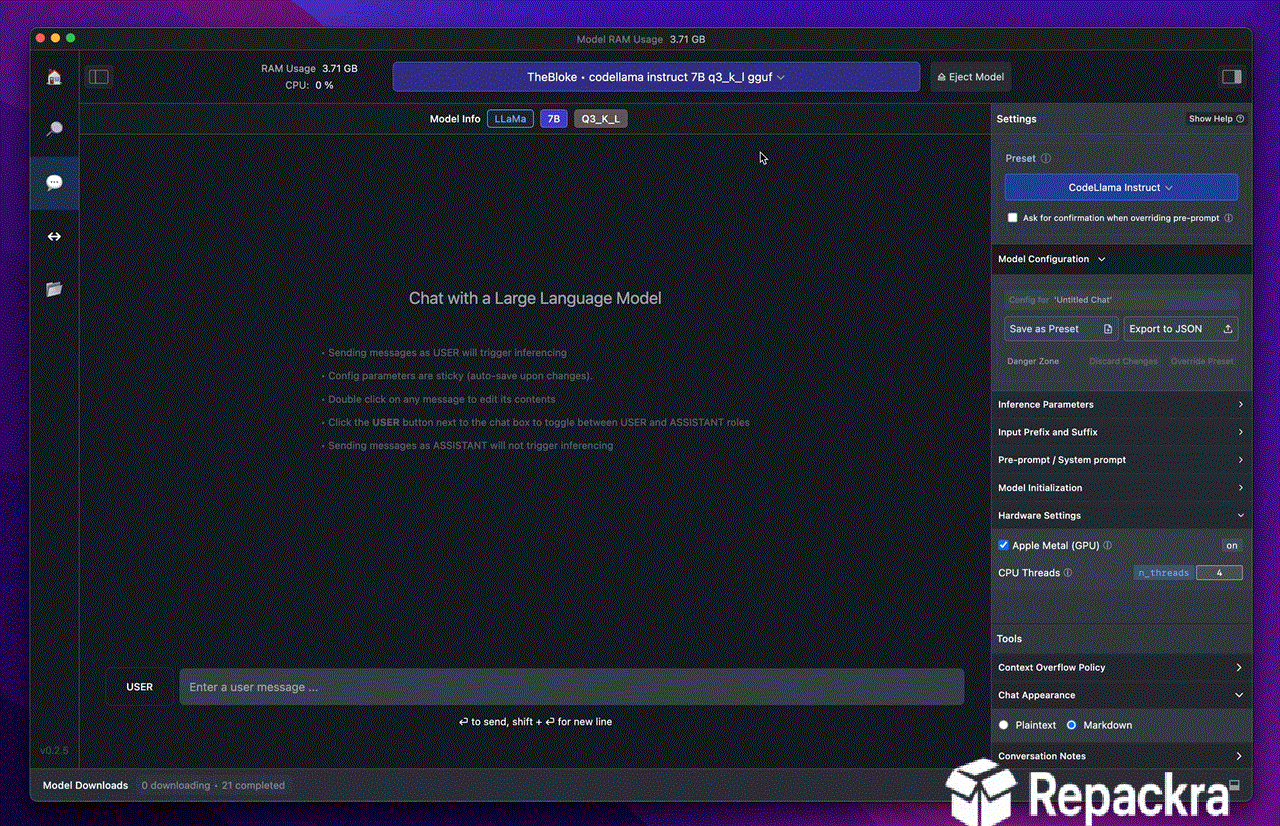
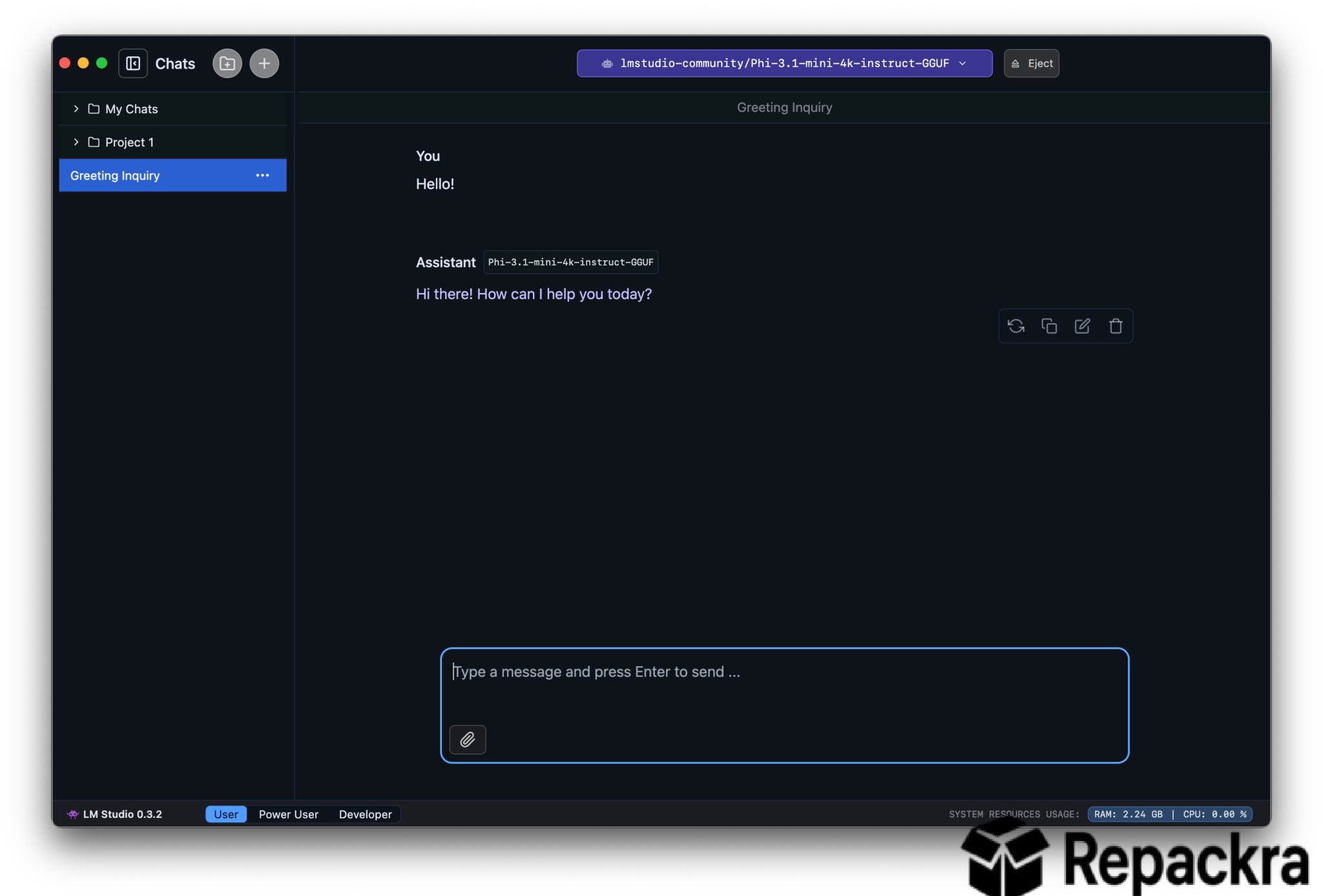
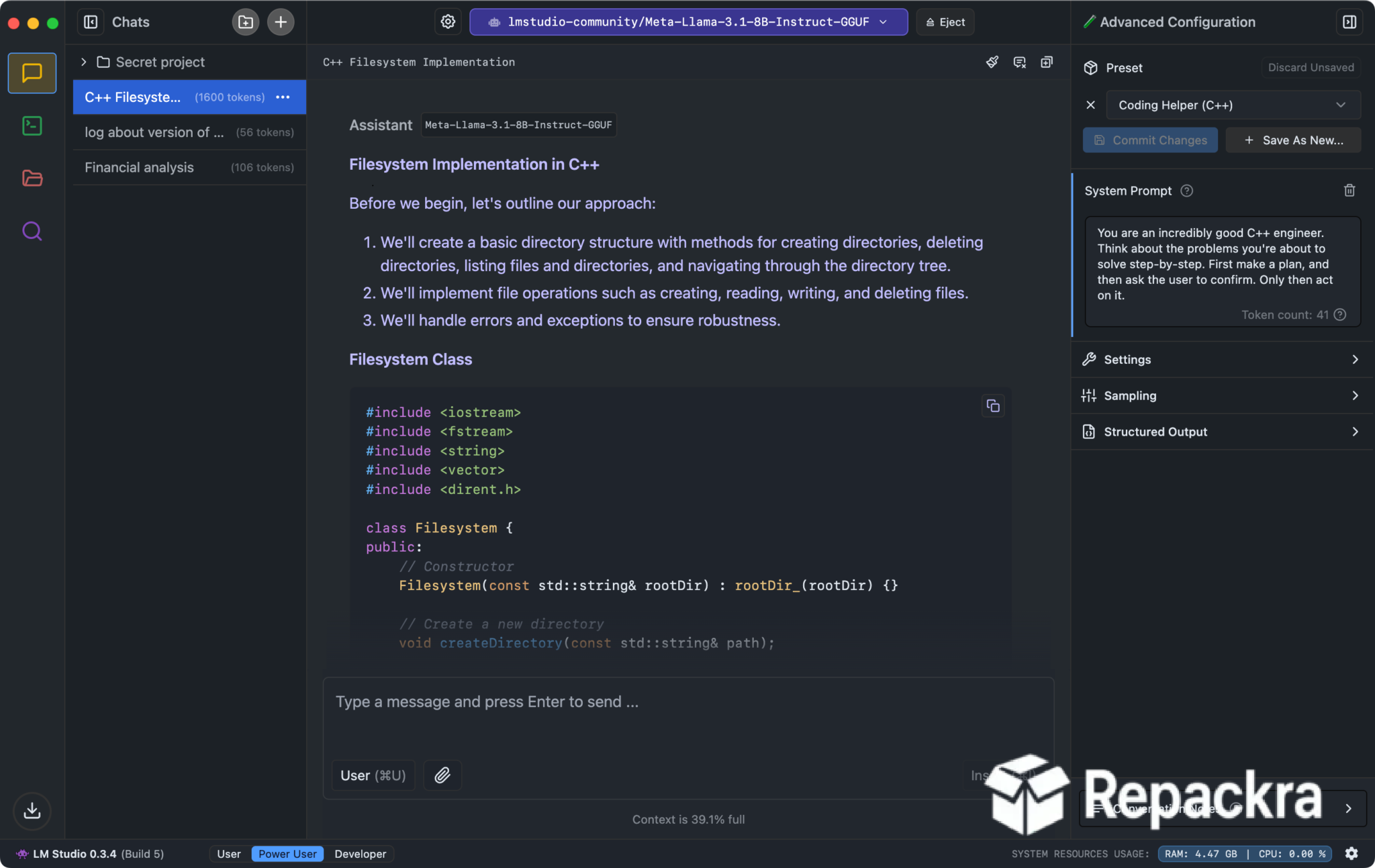
LM Studio for Mac is the desktop app that makes running large language models locally on your own machine genuinely accessible without requiring any command line knowledge or complex setup. Version 0.4.19 brings a more refined and capable experience for anyone who wants to experiment with open source AI models privately and offline.
I use it regularly because being able to run powerful language models entirely on my own hardware without sending data anywhere is something that matters both for privacy and for the sheer flexibility it provides.
LM Studio Overview
LM Studio for Mac is a desktop application that lets you discover, download, and run open source large language models directly on your Mac without any internet connection required after the initial model download. It provides a clean chat interface, an OpenAI compatible local server for connecting other apps, and a model library that makes finding and loading different models straightforward. LM Studio for Mac puts genuinely capable AI directly on your machine with no subscriptions or cloud dependencies involved.
Mac power users who want to connect their local LM Studio API to a fast launcher and productivity tool will find Raycast Pro for Mac a natural companion, with AI command integration that can point to a local model endpoint and bring LM Studio’s capabilities directly into their daily workflow without leaving the keyboard.
Developers who prefer working from the terminal and want a more lightweight, script friendly way to pull and run models will find Ollama for Mac a natural alternative, offering the same local model serving approach through a command line workflow instead of a GUI.
Key Features:
- Download and run open source LLMs locally
- Clean chat interface for interacting with models
- OpenAI compatible local API server
- Model discovery and management built in
- GPU acceleration via Metal on Apple Silicon
- Multiple model format support including GGUF
- System prompt and parameter customization
- Chat history management
- Offline operation after model download
- Fully optimized for Apple Silicon performance
What’s New in 0.4.19
- Improved Metal GPU acceleration on Apple Silicon
- Faster model loading and inference speeds
- Better memory management for larger models
- Several bug fixes and stability improvements
System Requirements
- macOS 12.0 or later
- 8 GB RAM minimum, 16 GB recommended for larger models
- Storage depends on model size, plan for 5 to 50 GB per model
- Apple Silicon strongly recommended for best performance
- Intel Mac supported with reduced performance
How to Install LM Studio on Mac
- Download LM Studio 0.4.19 for Mac.
- Open the DMG file.
- Drag LM Studio to your Applications folder.
- Launch LM Studio for Mac.
- Browse the model library and download your first model.
How to Download LM Studio for Mac
- Visit the official LM Studio website.
- Click the Download for Mac button.
- Wait for the DMG file to finish downloading.
- Open Downloads and open the DMG file.
- Drag to Applications and launch.
Supported Websites
- LM Studio Official Website
- Hugging Face Model Hub
- GitHub Official Repository
- MacUpdate
- Softpedia
- Fosshub
- 1000+ other trusted sources
Why Use LM Studio for Mac?
What makes LM Studio for Mac genuinely compelling is how completely it removes the barriers that usually come with running AI models locally. There is no terminal, no Python environment to configure, and no dependencies to wrestle with. You open the app, pick a model from the built in library, download it, and start chatting within minutes.
The local API server is particularly useful for developers who want to build apps that talk to a local model using the same code they would use for OpenAI’s API, making it easy to prototype and test without any cloud costs. On Apple Silicon the Metal acceleration makes inference speeds surprisingly usable even on consumer hardware.
Users who want an even simpler, more minimal interface focused purely on local chat without the extra developer tooling will find Jan.ai for Mac a close alternative worth trying, covering much of the same ground with a lighter footprint.
LM Studio vs Other Local AI Tools
| Feature | LM Studio | Others |
|---|---|---|
| No Code Local Model Running | Yes | Limited |
| Built in Model Discovery | Yes | Limited |
| OpenAI Compatible API Server | Yes | Limited |
| Apple Silicon GPU Acceleration | Yes | Limited |
| Mac Optimized | Yes | No |








