

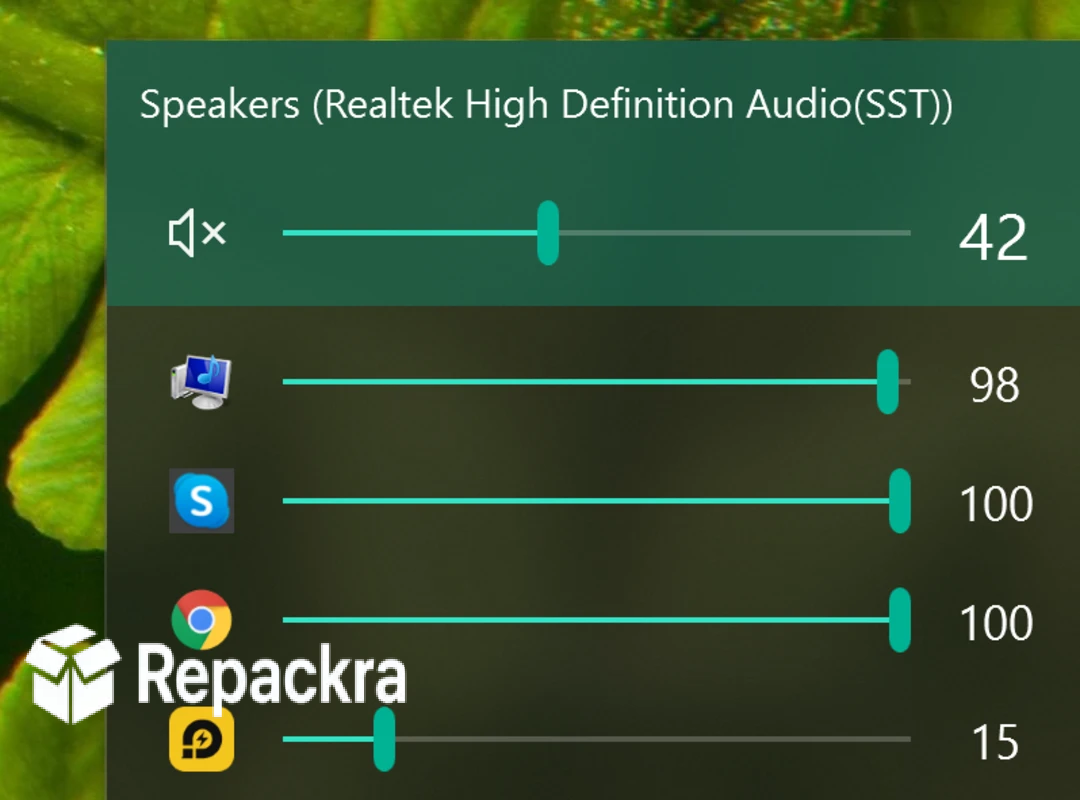
EarTrumpet for Windows is the volume control tool that replaces the clunky default Windows mixer with a clean, app-by-app volume interface that actually makes sense instead of digging through Control Panel menus. Version 2.3.0.0 brings a more polished and reliable experience for anyone who juggles audio from multiple apps and devices at once. I keep it pinned to my taskbar because it gives me instant control over exactly what’s making noise on my PC without ever opening the old sound settings panel.
EarTrumpet Overview
EarTrumpet for Windows is a free and open source audio control app that replaces the built in Windows volume mixer with a modern, easy to use interface for managing individual app volumes, output devices, and audio sessions. It lives quietly in your system tray and lets you switch playback devices, mute specific apps, and adjust volumes independently, all from a single click.
EarTrumpet for Windows is the simplest way to take full control of your PC’s audio on any Windows machine. Users who want that same system tray simplicity applied to keeping their screen awake during presentations, long downloads, or overnight tasks will find Caffeine for Windows a natural companion, sitting in the tray ready to prevent sleep or screensaver activation with a single click whenever they actually need it.
Key Features:
- Individual volume control for every running application
- Quick switching between playback and recording devices
- Clean, modern interface replacing the default Windows mixer
- Move individual app audio between different output devices
- System tray integration for instant access
- Mute or unmute apps directly from the tray icon
- Live audio session monitoring as apps open and close
- Fully open source with active community contributions
- Lightweight with minimal impact on system resources
- Fully compatible with Windows 10 and Windows 11
What’s New in Version 2.3.0.0
- Improved device switching reliability
- Better handling of apps with multiple audio sessions
- Updated interface for smoother navigation
- Several bug fixes and stability improvements
System Requirements
- Windows 10 or later, 64-bit recommended
- 1 GB RAM minimum
- 20 MB storage for the application itself
- Intel or AMD dual core processor
- Compatible audio device drivers installed
How to Install EarTrumpet on Windows
- Download EarTrumpet 2.3.0.0 for Windows.
- Run the installer file after the download completes, or install directly from the Microsoft Store.
- Follow the on screen installation steps.
- Launch EarTrumpet for Windows.
- Start managing your app volumes immediately from the system tray.
How to Download EarTrumpet for Windows
- Visit the official EarTrumpet website or Microsoft Store page.
- Click the Download button for the Windows version.
- Wait for the installer to finish downloading.
- Open Downloads and run the installer.
- Follow the setup steps to complete installation.
Supported Websites
- EarTrumpet Official Website
- Microsoft Store
- Softpedia
- MajorGeeks
- Filehorse
- 1000+ other trusted sources
Why Use EarTrumpet for Windows?
What makes EarTrumpet for Windows the go to volume tool for most people who try it is simply how much easier it makes managing audio compared to the default Windows mixer. Switching an app’s output device or muting a single program takes one click instead of navigating through multiple menus buried in system settings.
The tray integration makes daily use genuinely convenient since every control you need is right there without opening a separate window. Users who appreciate this kind of lightweight system tray utility that quietly handles a daily annoyance will find Auto Dark Mode for Windows equally satisfying, automatically switching between Windows light and dark themes based on sunrise and sunset times without any manual effort.
For anyone who regularly deals with multiple audio sources and devices, the simplicity EarTrumpet for Windows offers makes it the obvious choice over sticking with the built in Windows volume mixer.
EarTrumpet vs Other Volume Tools
| Feature | EarTrumpet | Others |
|---|---|---|
| Free and Open Source | Yes | No |
| Per App Volume Control | Yes | Limited |
| Modern Interface | Yes | No |
| System Tray Integration | Yes | Varies |
| Windows Optimized | Yes | No |








