

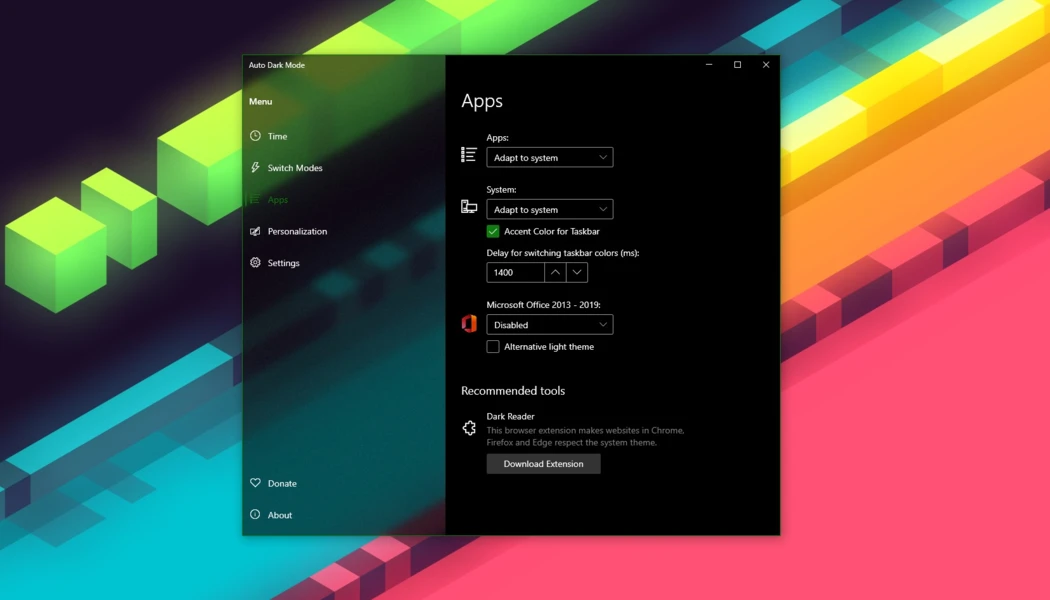
Auto Dark Mode for Windows is the theme scheduling tool that switches your desktop between light and dark mode automatically instead of forcing you to flip the setting by hand every morning and evening. Version 11.1.1 brings a more polished and reliable experience for anyone who wants,
Windows to handle theme switching the same effortless way macOS, Android, and iOS already do. I keep it running in the background because it gives me one less setting to think about while still keeping my eyes comfortable no matter the time of day.
Auto Dark Mode Overview
Auto Dark Mode for Windows is a free and open source utility that automatically switches your system between light and dark themes based on sunrise and sunset, a custom schedule, or even an ambient light sensor on supported laptops. Beyond the basic theme switch, it can also change your wallpaper, accent color, mouse cursor, and Office theme at the same time, all running quietly and locally without collecting any of your data.
Auto Dark Mode for Windows is one of the most complete ways to bring true automatic theming to any Windows machine. Users who want that same set and forget system tray utility philosophy applied to keeping their screen awake during presentations or long tasks will find Caffeine for Windows a natural companion, preventing sleep and screensaver activation with a single tray click whenever they actually need it.
Key Features:
- Automatic theme switching based on sunrise and sunset
- Custom time-based scheduling for light and dark mode
- Ambient light sensor support on compatible laptops and tablets
- Desktop wallpaper switching alongside theme changes
- Accent color switching for the taskbar and window borders
- Mouse cursor and Office theme switching included
- Skips switching automatically while gaming to avoid stuttering
- Support for running custom scripts on theme change
- Keyboard shortcuts to force a specific theme instantly
- Fully compatible with Windows 10 and Windows 11
What’s New in Version 11.1.1
- Fixed Italian language being accidentally mixed up with Chinese
- Fixed an issue where the app didn’t save window size or selected language after closing
- Hotfix release building on the major 11.1 update, addressing issues reported by the community
System Requirements
- Windows 10 22H2 or later, 32-bit and 64-bit supported
- 1 GB RAM minimum
- 106 MB storage for the application itself
- Intel or AMD processor, no dedicated graphics required
- No administrator rights needed for installation
How to Install Auto Dark Mode on Windows
- Download Auto Dark Mode 11.1.1 for Windows.
- Run the installer file after the download completes.
- Follow the on screen installation steps.
- Launch Auto Dark Mode for Windows from the system tray.
- Set your preferred switching schedule and let it run automatically.
How to Download Auto Dark Mode for Windows
- Visit the official Auto Dark Mode GitHub page.
- Click the Download button for the Windows installer.
- Wait for the installer to finish downloading.
- Open Downloads and run the installer.
- Follow the setup steps to complete installation.
Supported Websites
- Auto Dark Mode Official GitHub
- Microsoft Store
- Softpedia
- TechSpot
- Filehorse
- 1000+ other trusted sources
Why Use Auto Dark Mode for Windows?
What makes Auto Dark Mode for Windows the go to theme switcher for most people who try it is simply how much it automates something Windows still doesn’t handle well on its own. A single setup takes care of switching themes, wallpapers, and accent colors every single day going forward, something that would otherwise mean manually digging through settings multiple times a day.
The gaming aware switching makes daily use genuinely convenient since it avoids interrupting anything mid session with an unexpected theme change. Users who appreciate lightweight system tray utilities that quietly solve a daily annoyance will find EarTrumpet for Windows equally satisfying, replacing the clunky default Windows volume mixer with a clean per app audio control interface that lives right alongside Auto Dark Mode in the system tray.
For anyone who wants their Windows machine to feel as effortless as a phone when it comes to light and dark mode, the completeness Auto Dark Mode for Windows offers makes it the obvious choice over doing it manually.
Auto Dark Mode vs Other Theme Tools
| Feature | Auto Dark Mode | Others |
|---|---|---|
| Free and Open Source | Yes | No |
| Sunrise/Sunset Switching | Yes | Limited |
| Wallpaper and Accent Sync | Yes | Rare |
| Gaming-Aware Switching | Yes | Rare |
| Windows Optimized | Yes | No |








