
Audacity for Windows is the audio editor that has been the first recommendation for anyone who needs to record, edit, or clean up audio without spending money on professional software for longer than most of its current users can remember. Version 3.7.8 brings a more stable and capable experience that continues building on years of community,
driven development and recent improvements to an interface that has finally started feeling more modern. I use it for everything from podcast editing to quick audio cleanup because the tools it provides are genuinely effective for the vast majority of audio tasks most people actually encounter.
Audacity Overview
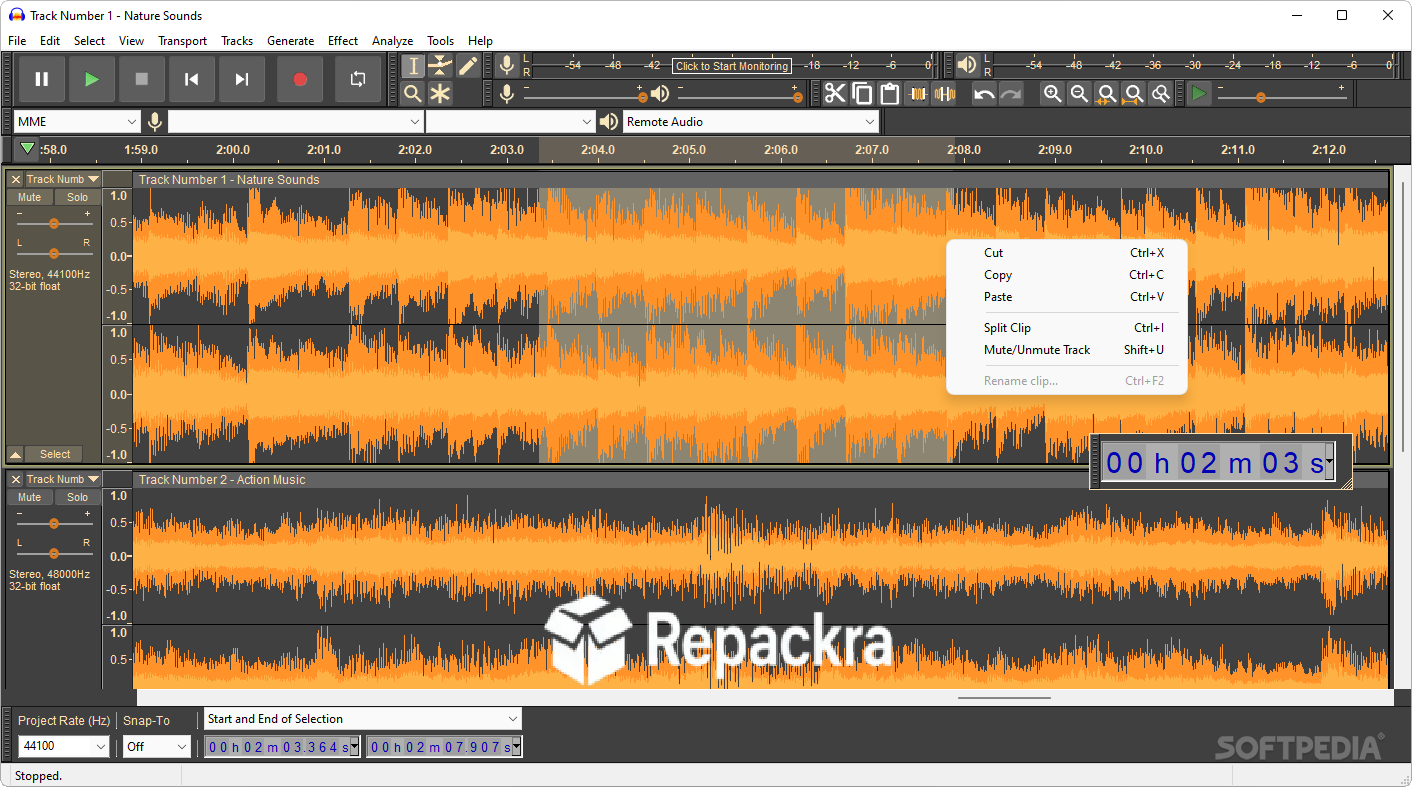
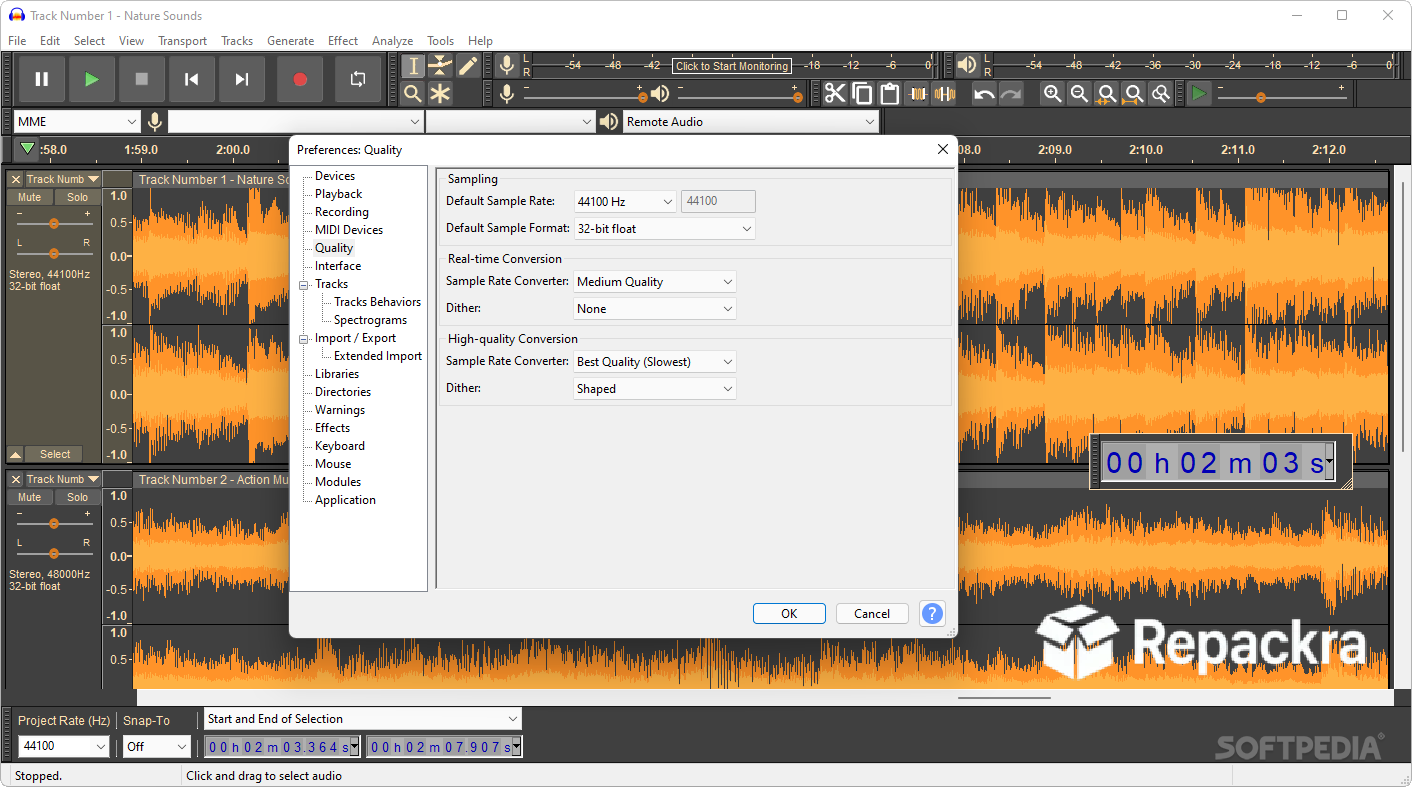
Audacity for Windows is a free and open source multi track audio editor and recorder that handles recording from microphones and mixers, editing audio clips, applying effects and noise reduction, and exporting to virtually every common audio format through a straightforward interface that has been refined over decades of community input.
It is not a digital audio workstation built for professional music production but for recording, editing, and cleaning up spoken audio and straightforward sound work it covers the territory better than anything else available at no cost. Audacity for Windows is the tool that just works for the audio tasks most people actually need to do.
Users who need to trim, cut, or split audio and video files before bringing them into Audacity for cleanup will find LosslessCut for Windows a natural first step, cutting any file in seconds with zero quality loss and no re-encoding so the audio Audacity receives is exactly as clean as the original source.
Key Features:
- Multi track audio recording and editing
- Noise reduction and audio cleanup tools
- Equalizer, compressor, and limiter effects
- Spectrogram view for detailed audio analysis
- Export to MP3, WAV, FLAC, OGG, and more
- Plugin support for VST and LADSPA effects
- Label tracks for marking and organizing audio
- Clip gain and envelope editing
- Silence detection and removal tools
- Fully compatible with Windows 10 and Windows 11
What’s New in Version 3.7.8
- Improved stability during long recording sessions
- Better VST plugin compatibility throughout
- Updated noise reduction algorithm accuracy
- Several bug fixes and stability improvements
System Requirements
- Windows 10 or later, 64-bit recommended
- 4 GB RAM minimum, 8 GB recommended for multi track work
- 200 MB storage for the application itself
- Intel or AMD dual core processor
- Audio interface or built in sound card required
How to Install Audacity on Windows
- Download Audacity 3.7.8 for Windows.
- Run the installer file.
- Follow the on screen installation steps.
- Launch Audacity for Windows.
- Configure your audio input and output devices and start recording.
How to Download Audacity for Windows
- Visit the official Audacity website at audacityteam.org.
- Click the Download for Windows button.
- Wait for the installer to finish downloading.
- Open Downloads and run the installer.
- Follow the setup steps to complete installation.
Supported Websites
- Audacity Official Website
- GitHub Official Repository
- Softpedia
- MajorGeeks
- FileHippo
- Fosshub
- 1000+ other trusted sources
Why Use Audacity for Windows?
What keeps Audacity for Windows the default recommendation for audio editing after all these years is how genuinely capable it is for the work most people actually need it to do. Cleaning up a recorded interview, removing background noise from a podcast, cutting out mistakes from a voiceover, and exporting a finished audio file in whatever format a client requests are all things Audacity handles well without any fuss.
The noise reduction tool in particular is surprisingly effective for a free tool and the results it produces on recorded speech would cost meaningful money to achieve with commercial alternatives.
Podcasters and content creators who source audio from YouTube interviews, lectures, or other online video will find yt-dlp for Windows an essential companion, downloading audio from thousands of platforms in full quality with a single command ready to drop straight into Audacity for cleanup and editing.
For anyone who records audio of any kind and wants a reliable editor that works without any ongoing cost, Audacity for Windows is still the obvious starting point.
Audacity vs Other Audio Editors
| Feature | Audacity | Others |
|---|---|---|
| Noise Reduction Tool | Yes | Limited |
| Multi Track Editing | Yes | Limited |
| VST Plugin Support | Yes | Limited |
| Completely Free and Open Source | Yes | No |
| Windows Optimized | Yes | No |








