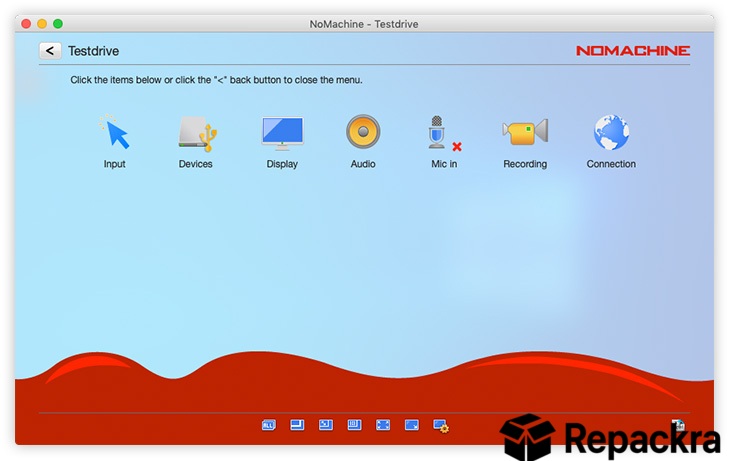
NoMachine for Windows is the remote desktop tool that genuinely surprises you the first time you use it because nothing else at this level of performance is available without a hefty subscription attached to it. Version 9.8.2 brings a more stable and refined experience for anyone who needs fast and reliable remote access to their machines at home or in the office.
I keep it installed because the display quality and responsiveness during remote sessions is noticeably better than most alternatives I have tried, including RustDesk for Windows, which I still use on machines where I want something lighter and account free.
NoMachine Overview
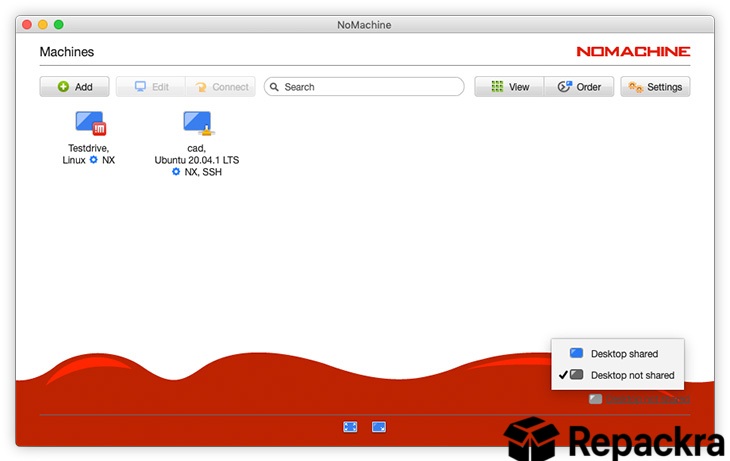
NoMachine for Windows is a high performance remote desktop application built around the NX protocol which delivers remarkably smooth and responsive remote sessions even on connections that would make other tools feel sluggish and unusable. It supports remote access, file transfer, desktop sharing,
and collaborative sessions all from one well designed application. NoMachine for Windows handles everything from casual remote access to demanding professional workflows without breaking a sweat.
Users who need a remote desktop solution that works instantly without any network configuration or port forwarding will find AnyDesk for Windows a natural companion, offering fast remote access through a simple connection code that works straight out of the box for quick support and access sessions.
Key Features
- High performance NX protocol for smooth remote sessions
- Remote desktop access to Windows and other platforms
- File transfer between local and remote machines
- Screen sharing and collaborative session support
- Audio and microphone forwarding during sessions
- USB device sharing over remote connections
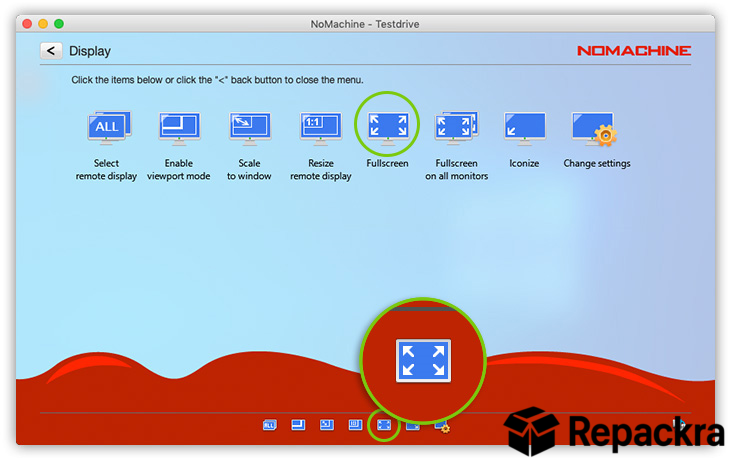
- Multi monitor support for remote sessions
- Session recording for review and documentation
- Unattended access for always on remote connections
- Fully optimized for Windows 10 and Windows 11
What’s New in Version 9.8.2
- Improved NX protocol performance on lower bandwidth connections
- Better multi monitor handling during remote sessions
- Security patches applied across core components
- Several bug fixes and stability improvements
System Requirements
- Windows 10 or later, 64-bit recommended
- 2 GB RAM minimum, 4 GB recommended
- 200 MB storage space available
- Active internet connection required
- Intel or AMD dual core processor
How to Install NoMachine on Windows
- Download NoMachine 9.8.2 for Windows.
- Run the installer file.
- Follow the on screen installation steps.
- Launch NoMachine for Windows.
- Connect to a remote machine using its NoMachine address or IP.
How to Download NoMachine for Windows
- Visit the official NoMachine website.
- Click the Download for Windows button.
- Wait for the installer to finish downloading.
- Open Downloads and run the installer.
- Follow the setup steps to complete installation.
Supported Websites
- NoMachine Official Website
- Softpedia
- MajorGeeks
- FileHippo
- Fosshub
- Filehorse
- 1000+ other trusted sources
Why Use NoMachine for Windows?
What sets NoMachine for Windows apart from other remote desktop tools is how genuinely smooth the experience feels during an active session. The NX protocol is built specifically for remote display performance and the difference is noticeable the moment you start scrolling, playing video, or doing anything that involves fast screen updates.
Audio forwarding actually works properly, multi monitor setups are handled cleanly, and the whole thing runs without requiring any cloud subscription or account to use between your own machines.
For local network scenarios where I don’t even need internet routing, UltraVNC for Windows still earns its place in my toolkit as a straightforward VNC based option. For anyone who needs serious remote desktop performance without paying ongoing fees, NoMachine for Windows is one of the best options available.
NoMachine vs Other Remote Desktop Tools
| Feature | NoMachine | Others |
|---|---|---|
| NX Protocol Performance | Yes | No |
| Audio and Mic Forwarding | Yes | Limited |
| USB Device Sharing | Yes | Limited |
| Session Recording | Yes | Limited |
| Windows Optimized | Yes | No |