
Adobe Acrobat Reader for Windows is the PDF viewer that virtually everyone has installed at some point and for good reason since it remains the most reliable and feature complete way to open, read, and interact with PDF files on any Windows machine.
Version 26.0 brings a more refined and capable experience that goes well beyond just viewing documents. I keep it installed because PDF files behave exactly as intended every single time without any formatting surprises or missing features.
Adobe Acrobat Reader Overview
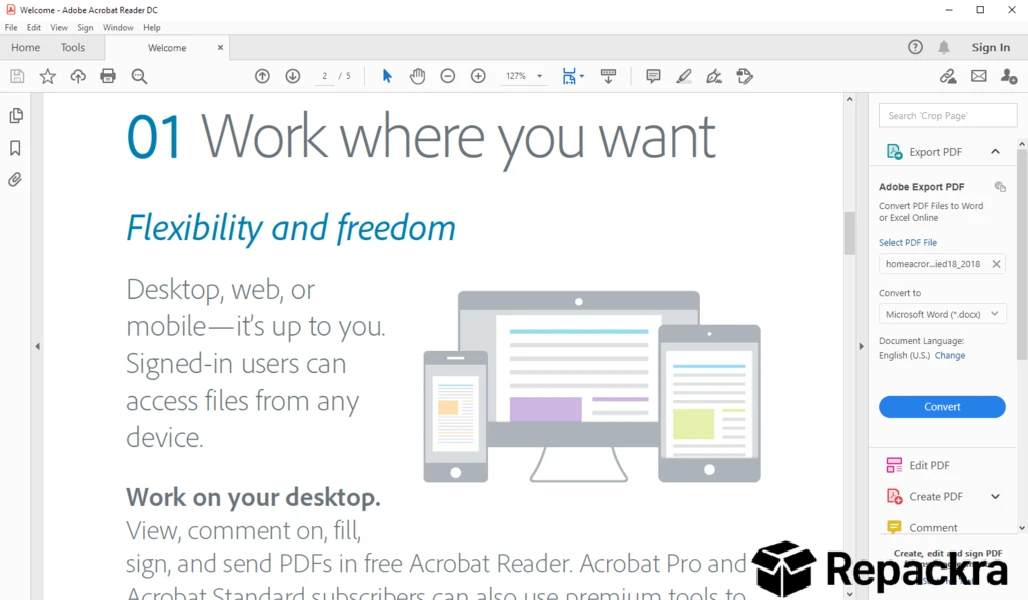
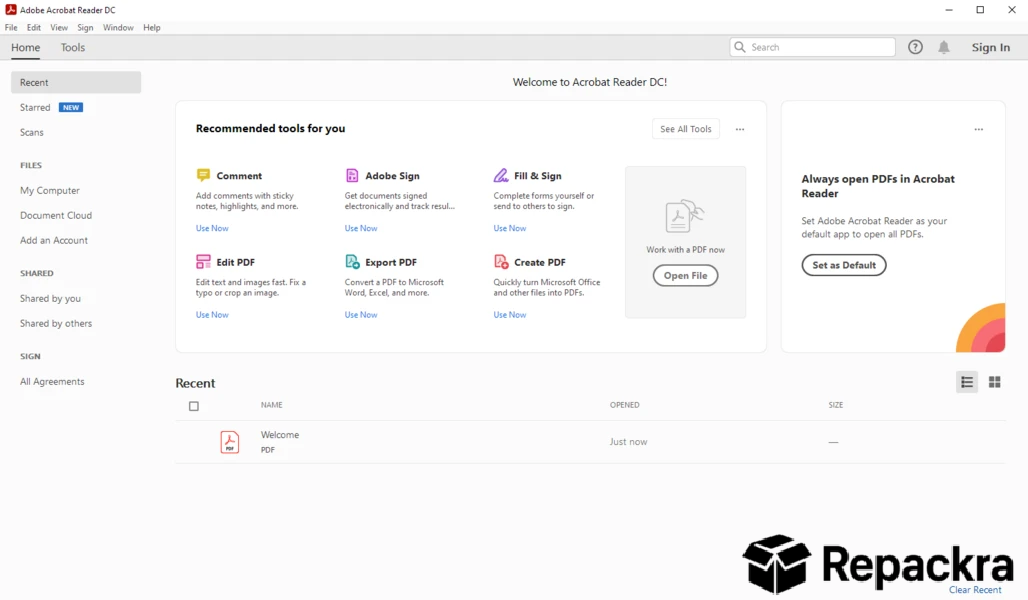
Adobe Acrobat Reader for Windows is the industry standard PDF viewing and annotation application built by the company that invented the PDF format. It handles everything from simple document viewing to form filling, digital signatures, and collaborative commenting with a level of compatibility that no third party PDF viewer consistently matches.
For quick glances at a PDF without waiting on a full application to load, I’ll often just hit spacebar with QuickLook for Windows instead, saving Acrobat for the documents that actually need editing or signing. Adobe Acrobat Reader for Windows is the version of a PDF file that the creator actually intended you to see.
Key Features:
- Fast and accurate PDF viewing and rendering
- Form filling and digital signature support
- Commenting and annotation tools
- Text highlighting and sticky note support
- Cloud document access via Adobe Document Cloud
- Read aloud accessibility feature
- Protected mode for secure document viewing
- Search across document content quickly
- Print with advanced layout controls
- Fully optimized for Windows 10 and Windows 11
What’s New in 26.0
- Improved PDF rendering speed on large documents
- Better form filling compatibility across document types
- Enhanced security patches across core components
- Several bug fixes and stability improvements
System Requirements
- Windows 10 or later, 64-bit recommended
- 2 GB RAM minimum, 4 GB recommended
- 900 MB storage space available
- Intel or AMD dual core processor
- Active internet connection for cloud features
How to Install Adobe Acrobat Reader on Windows
- Download Adobe Acrobat Reader DC 26.0 for Windows.
- Run the installer file.
- Follow the on screen installation steps.
- Launch Adobe Acrobat Reader for Windows.
- Sign in with your Adobe account for cloud features.
How to Download Adobe Acrobat Reader for Windows
- Visit the official Adobe Acrobat Reader website.
- Click the Download Acrobat Reader button.
- Wait for the installer to finish downloading.
- Open Downloads and run the installer.
- Follow the setup steps to complete installation.
Supported Websites
- Adobe Official Website
- Microsoft Store
- Softpedia
- MajorGeeks
- FileHippo
- Fosshub
- 1000+ other trusted sources
Why Use Adobe Acrobat Reader for Windows?
The honest reason most people stick with Adobe Acrobat Reader for Windows is that PDF files simply work the way they’re supposed to when you open them here. Fonts render correctly, forms are fully interactive, digital signatures validate properly, and documents with complex layouts don’t fall apart the way they sometimes do in lighter PDF viewers.
The annotation tools are genuinely useful for anyone who reviews documents regularly and the protected mode gives you a meaningful layer of security when opening files from unknown sources. For anyone who deals with PDFs regularly in a professional context, Adobe Acrobat Reader for Windows is simply the most dependable option available.
Adobe Acrobat Reader vs Other PDF Viewers
| Feature | Adobe Acrobat Reader | Others |
|---|---|---|
| Native PDF Format Support | Yes | Limited |
| Digital Signature Validation | Yes | Limited |
| Interactive Form Support | Yes | Limited |
| Protected Viewing Mode | Yes | No |
| Windows Optimized | Yes | No |