

Media Creation Tool for PC is the official utility that Windows users turn to whenever they need a clean, no-nonsense way to download and install Windows without wrestling with third party ISO sites of questionable trustworthiness. Build 26200 brings it in line with the latest Windows 11 release, making it the most reliable way to get a fresh, unmodified copy of the OS straight from the source.
I reach for it every time I’m setting up a new machine or doing a clean reinstall because it removes any doubt about what’s actually being installed. For flashing that same ISO onto a USB drive afterward, balenaEtcher for PC is another tool worth having around, especially if you’re used to its simpler drag and drop workflow.
Media Creation Tool Overview
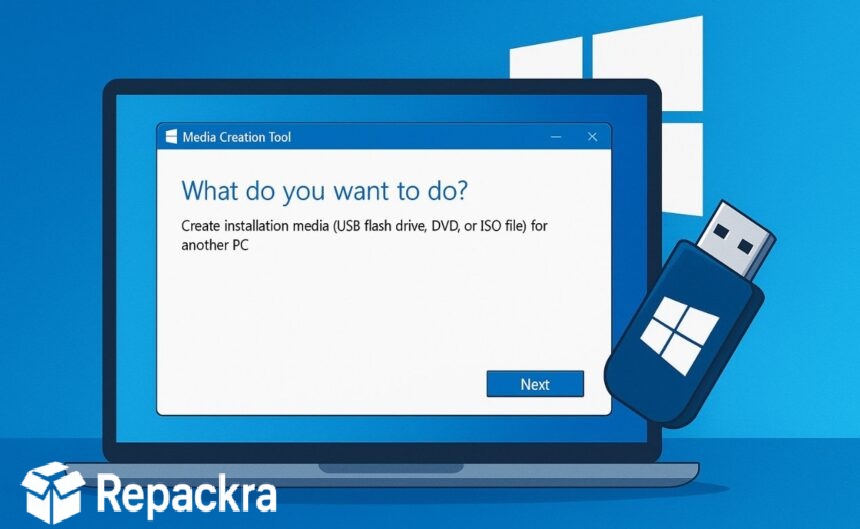
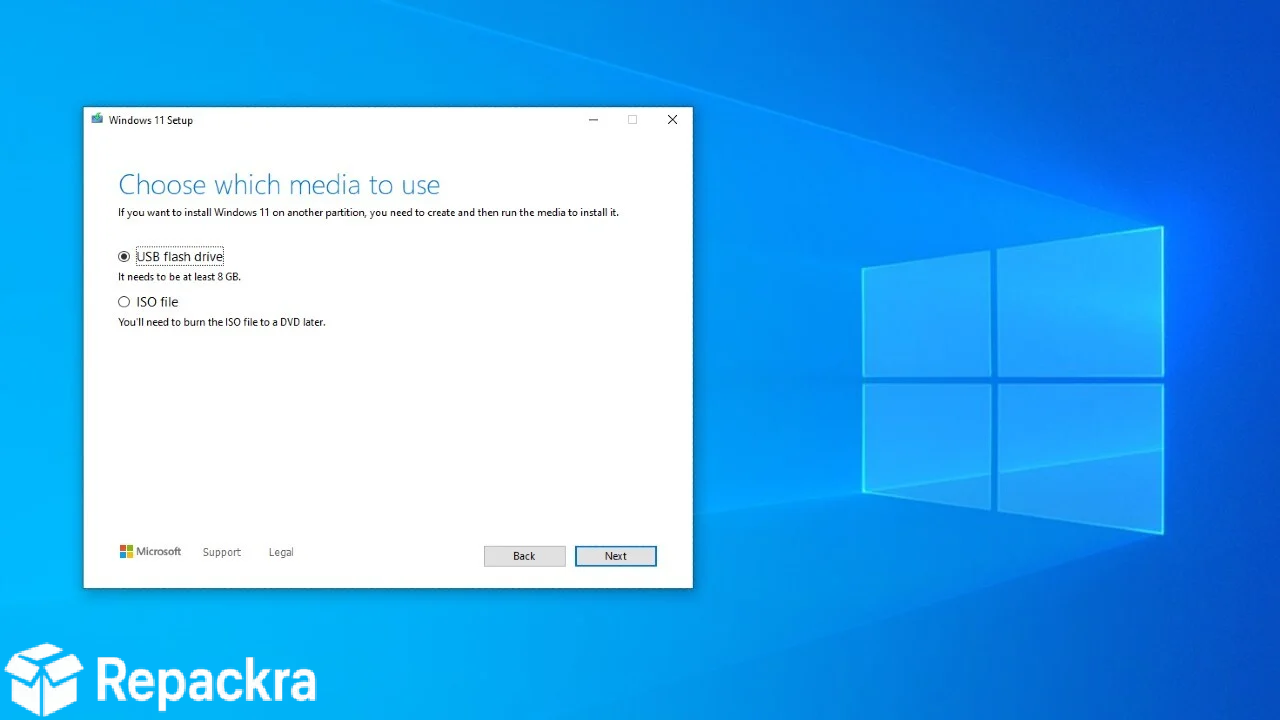
Media Creation Tool for PC is a lightweight utility built by Microsoft that lets users download the latest version of Windows and either create a bootable USB drive, burn an ISO to DVD, or upgrade the current PC directly.
It strips away all the guesswork around which edition or build to grab since it always pulls the current official release. Media Creation Tool for PC is the safest starting point for anyone who wants a clean, unmodified Windows installation. If you’d rather have more control over the flashing process itself, especially for non-Windows ISOs, Rufus for Windows is a solid companion tool to keep on hand.
Key Features
- Direct download of the latest official Windows build
- Bootable USB drive creation for clean installs
- ISO file creation for burning to DVD or virtual machines
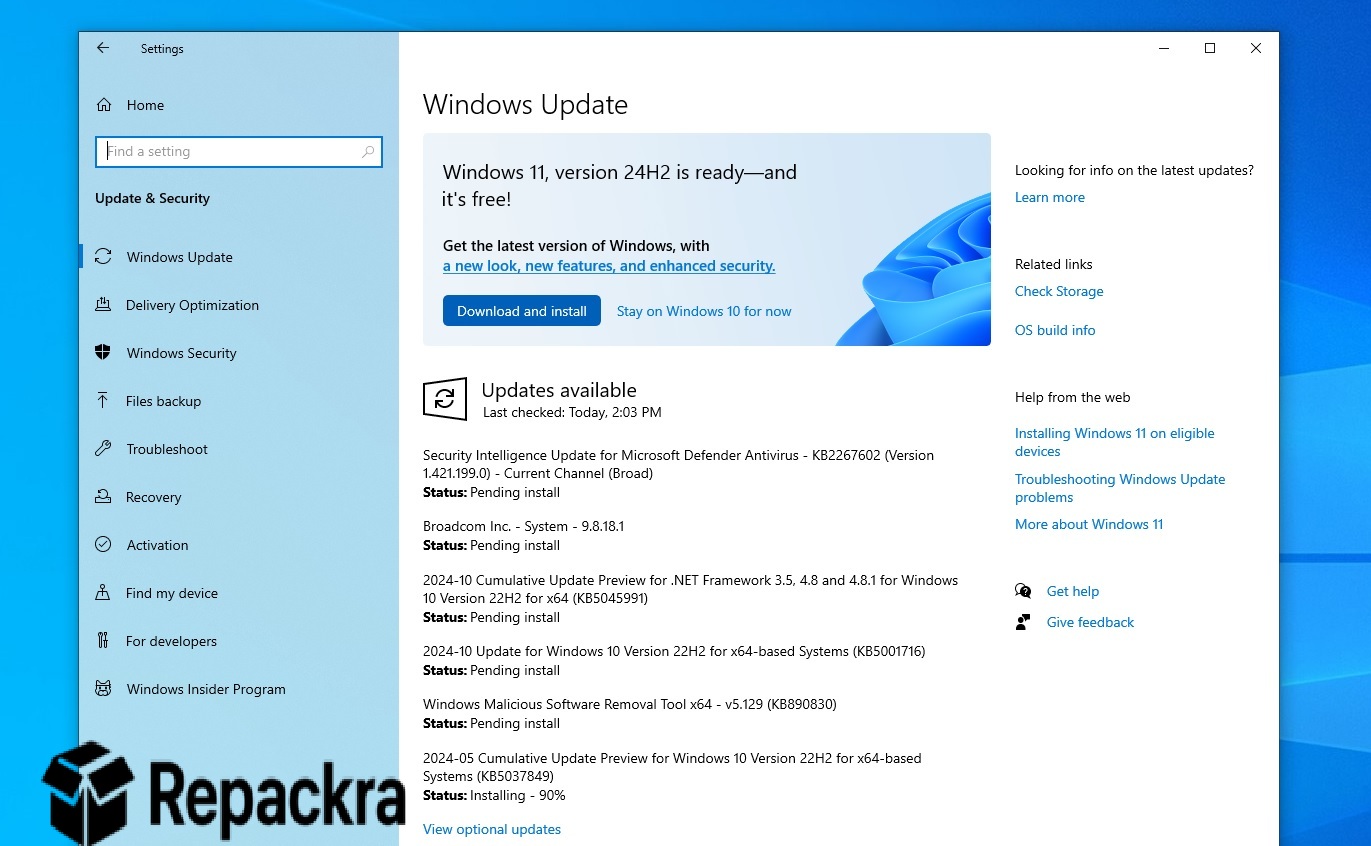
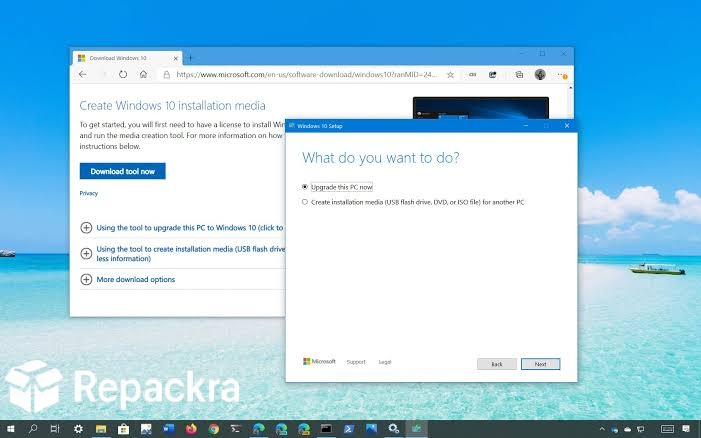
- In place upgrade option for the current PC
- Automatic detection of language, edition, and architecture
- Support for both 32-bit and 64-bit systems
- No third party bundled software or bloatware
- Straightforward step by step wizard interface
- Works across multiple PCs from a single download
- Fully compatible with Windows 10 and Windows 11
What’s New in Build 26200
- Updated to reflect the latest Windows 11 feature release
- Improved USB creation speed and reliability
- Better error handling during download and verification
- Several bug fixes and stability improvements
System Requirements
- Windows 10 or later to run the tool itself
- 8 GB USB drive minimum for bootable media
- 8 GB free disk space for ISO downloads
- Broadband internet connection recommended
- Administrator access on the PC running the tool
How to Install Windows Using Media Creation Tool
- Download Media Creation Tool Build 26200 for PC.
- Run the tool and accept the license terms.
- Choose to upgrade this PC now or create installation media for another PC.
- Select your language, edition, and architecture if prompted.
- Follow the wizard to complete the download and installation.
How to Download Media Creation Tool for PC
- Visit the official Microsoft Windows software download page.
- Click the Download Now button under Create Windows Installation Media.
- Wait for the tool to finish downloading.
- Open Downloads and run the executable.
- Follow the on screen steps to begin creating your media.
Supported Websites
- Microsoft Official Website
- Softpedia
- MajorGeeks
- FileHippo
- Fosshub
- Filehorse
- 1000+ other trusted sources
Why Use Media Creation Tool for PC?
What makes Media Creation Tool for PC the tool most people should default to is the sheer peace of mind that comes with pulling Windows straight from Microsoft rather than an unverified mirror somewhere online. Being able to create a bootable USB, burn an ISO, or upgrade the current machine all from the same small utility covers pretty much every reinstall scenario a typical user runs into.
The automatic detection of language and edition also saves a surprising amount of confusion for anyone who isn’t sure exactly which version they need. For repair and recovery situations where a full Windows install is overkill, I usually keep something like WinPE NHV BOOT ISO on a separate drive, since a lightweight PE environment gets me into a broken system far faster than reinstalling from scratch. For anyone setting up a new PC or doing a clean reinstall the right way, Media Creation Tool for PC is the tool that removes all the guesswork.
Media Creation Tool vs Other Installation Methods
| Feature | Media Creation Tool | Others |
|---|---|---|
| Official Microsoft Source | Yes | No |
| Bootable USB Creation | Yes | Limited |
| In Place Upgrade Option | Yes | Limited |
| No Bundled Bloatware | Yes | No |
| Windows Optimized | Yes | No |








