

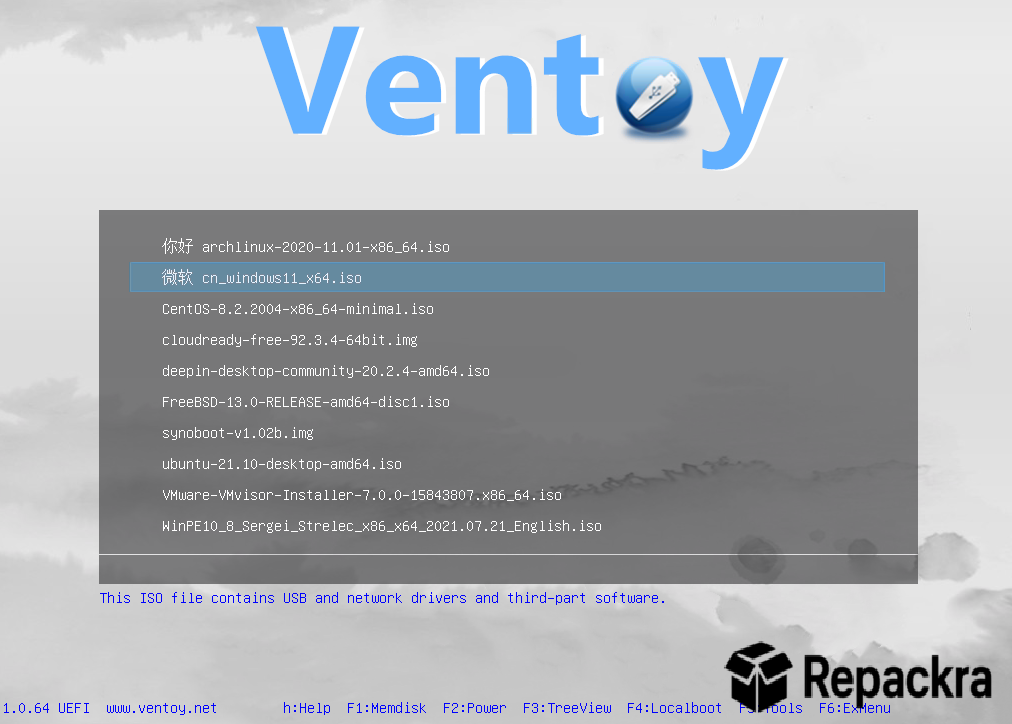
VentoyDisplay for PC is the companion utility for Ventoy that makes managing your bootable USB drive visually cleaner and more organized than the default approach of just dumping ISO files into a folder. Version 1.1.17 brings a more refined and reliable experience for anyone who maintains a collection of bootable ISOs on a single USB drive and wants a better way to see and manage what’s on it.
I keep it running alongside Ventoy because having a clear visual overview of everything on my multi boot drive saves a surprising amount of time when I’m trying to find the right ISO quickly. Users who just need to flash a single ISO to a USB drive rather than maintain a multi boot collection will find Rufus for PC the simpler tool for that one off job, handling the actual flashing step that Ventoy and VentoyDisplay build on top of.
VentoyDisplay Overview
VentoyDisplay for PC is a lightweight graphical companion tool for Ventoy that gives you a clean visual interface to browse, organize, and manage the ISO files on your Ventoy USB drive rather than navigating through file explorer folders manually. It shows you at a glance what bootable images you have available, how much space they’re taking up, and lets you manage them without digging through directory structures. VentoyDisplay for PC makes maintaining a large multi boot USB collection significantly more manageable.
Users who want a straightforward, cross platform tool for flashing a single OS image rather than managing a whole multi boot library will find balenaEtcher for PC a natural companion, covering the simple one ISO one drive use case that VentoyDisplay’s multi boot management isn’t really built for.
Key Features:
- Visual overview of all ISOs on your Ventoy drive
- Storage usage display per ISO file
- Organize and categorize bootable images
- Quick launch and preview of ISO details
- Drag and drop ISO management support
- Compatible with all Ventoy supported formats
- Lightweight with minimal resource usage
- Clean and straightforward interface
- Works alongside existing Ventoy installations
- Fully compatible with Windows 10 and Windows 11
What’s New in Version 1.1.17
- Improved ISO detection accuracy on larger drives
- Better compatibility with latest Ventoy versions
- Faster drive scanning and display loading
- Several bug fixes and stability improvements
System Requirements
- Windows 10 or later, 64-bit recommended
- 2 GB RAM minimum
- 50 MB storage for the application itself
- Ventoy installed USB drive required
- Intel or AMD dual core processor
How to Install VentoyDisplay on PC
- Download VentoyDisplay 1.1.17 for PC.
- Extract the downloaded file.
- Run the executable directly.
- Connect your Ventoy USB drive.
- Launch VentoyDisplay for PC and start managing your ISOs.
How to Download VentoyDisplay for PC
- Visit the official VentoyDisplay page or GitHub repository.
- Click the download link for the latest Windows release.
- Wait for the file to finish downloading.
- Open Downloads and extract the archive.
- Run the executable to start immediately.
Supported Websites
- VentoyDisplay GitHub Official Page
- Ventoy Official Website
- Softpedia
- MajorGeeks
- Fosshub
- Filehorse
- 1000+ other trusted sources
Why Use VentoyDisplay for PC?
What makes VentoyDisplay for PC genuinely useful is how it removes the mental overhead of maintaining a large bootable USB collection. Once you have ten or fifteen ISOs on a Ventoy drive, navigating through them in a plain file explorer and remembering what each one is and how large it is starts to become more friction than it should be.
VentoyDisplay for PC gives you a clear and organized view of everything on your drive so finding the right ISO, checking available space, and cleaning up old images you no longer need takes seconds rather than minutes of folder browsing.
Users specifically building a Windows installation drive rather than a general multi boot ISO collection will find Microsoft’s own Media Creation Tool for PC useful for generating that particular ISO before it ever gets added to a Ventoy drive. For anyone who regularly works with bootable media, it’s the kind of small utility that quietly earns its place.
VentoyDisplay vs Other USB Management Tools
| Feature | VentoyDisplay | Others |
|---|---|---|
| Ventoy Specific Integration | Yes | No |
| Visual ISO Overview | Yes | Limited |
| Storage Usage Per ISO | Yes | Limited |
| Drag and Drop Management | Yes | Limited |
| Windows Optimized | Yes | No |








