

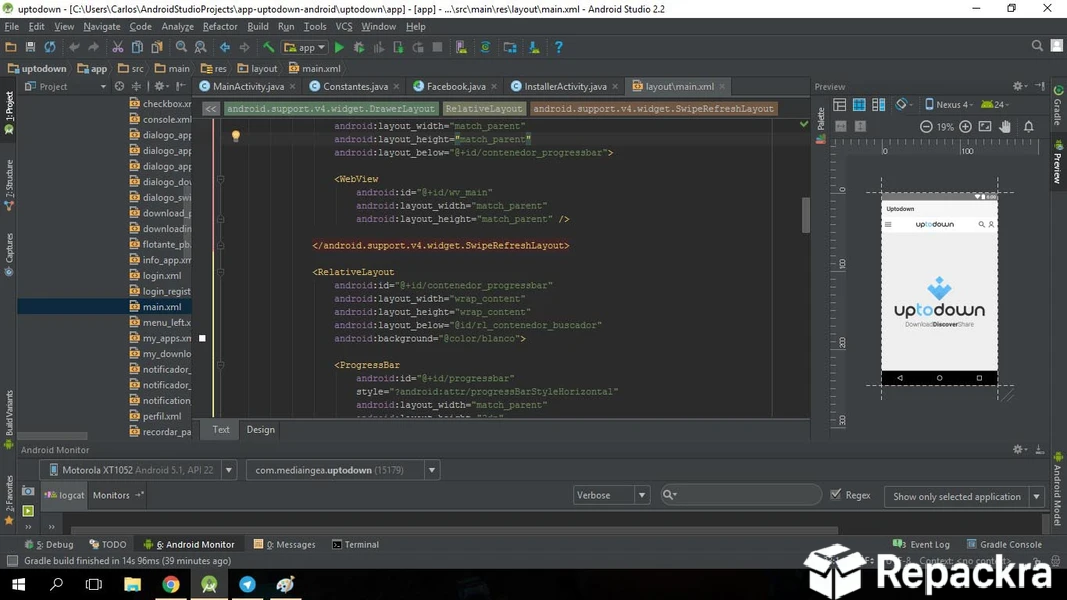
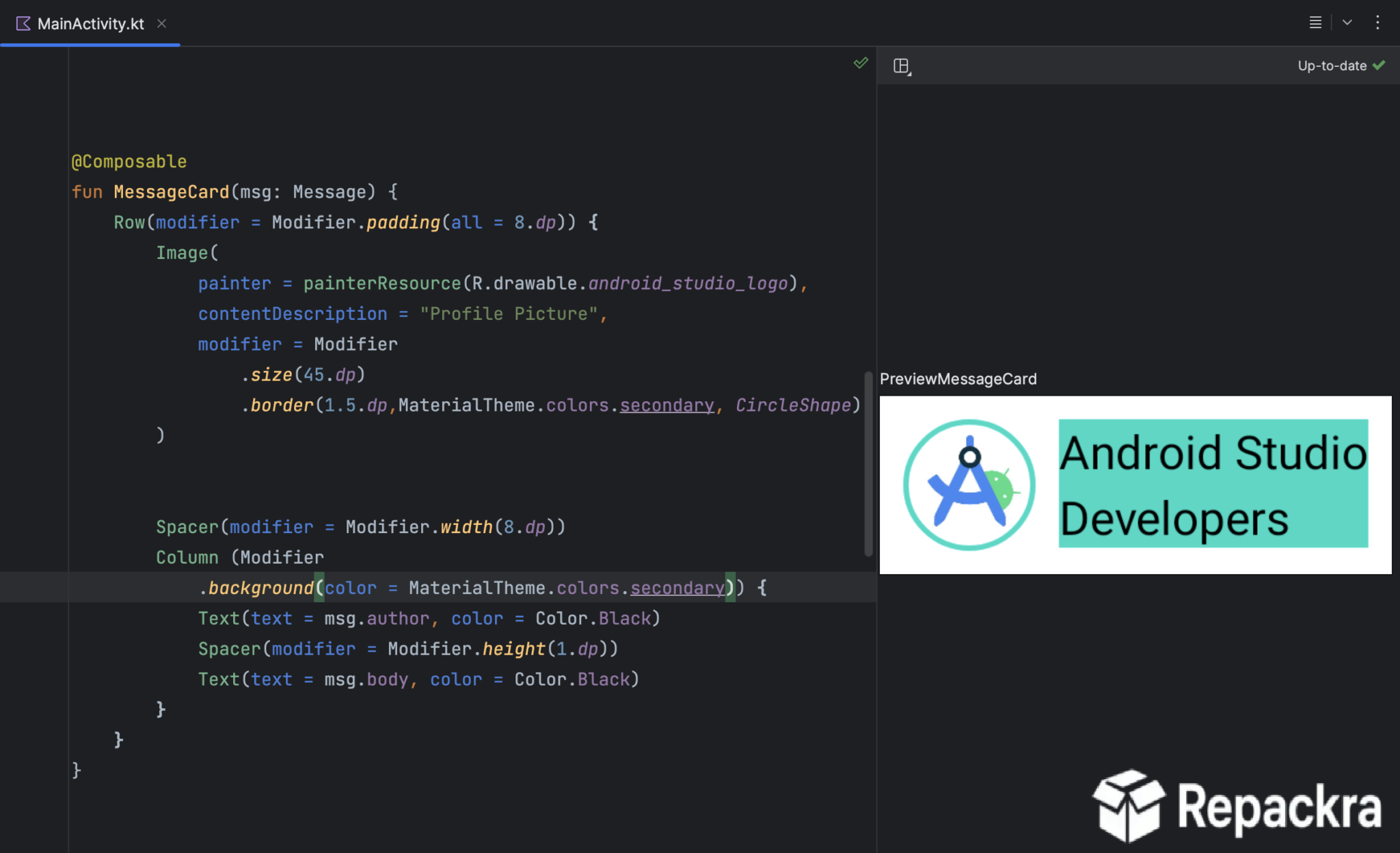
Android Studio for Windows is the official development environment for Android apps and it remains the most complete and capable tool available for anyone building on the Android platform. Version 2026.1.2 brings meaningful improvements to build speeds, code intelligence, and device emulation that make the day to day development experience noticeably smoother.
I use it on every Android project because nothing else on Windows comes close to the depth of tooling it provides right out of the box. Since it’s built on the same foundation as IntelliJ IDEA Community, a lot of the shortcuts and workflow habits carry over if you’ve used JetBrains tools for other languages before.
Android Studio Overview
Android Studio for Windows is Google’s official IDE built on top of IntelliJ IDEA and designed specifically for Android development. It gives you everything you need in one place,
from a smart code editor and visual layout designer to a built in emulator and performance profiling tools. Android Studio for Windows is where most serious Android development happens and for good reason.
Developers who want to automate build tasks, manage SDK components, and script deployment workflows from the command line alongside their Android Studio setup will find PowerShell for Windows the most capable shell for the job, giving them object based scripting and full system access that CMD simply cannot match.
Key Features
- Smart code editor with AI powered suggestions
- Visual drag and drop layout editor
- Built in Android device emulator
- Real time performance and memory profiler
- Gradle based build system with fast incremental builds
- Version control integration with Git and GitHub
- Kotlin and Java language support
- Jetpack Compose live preview support
- Device mirroring for physical device testing
- App inspection and database viewer tools
- Firebase integration support built in
- SDK manager for easy platform management
- Multi module project support
- Lint and code analysis tools
- Fully optimized for Windows 10 and Windows 11
What’s New in Version 2026.1.2
- Faster Gradle build times across all project sizes
- Improved Jetpack Compose preview rendering accuracy
- Better Android emulator performance on Windows
- Several bug fixes across editor and profiler tools
System Requirements
- Windows 10 or later, 64-bit
- 8 GB RAM minimum, 16 GB recommended
- 8 GB storage space available
- 1280 x 800 minimum screen resolution
- Intel or AMD processor with virtualization support
How to Install Android Studio on Windows
- Download Android Studio 2026.1.2 for Windows.
- Run the installer file.
- Follow the on screen installation steps.
- Launch Android Studio for Windows.
- Complete the setup wizard and install the required SDK components.
How to Download Android Studio for Windows
- Visit the official Android Studio website.
- Click the Download Android Studio button.
- Wait for the installer to finish downloading.
- Open Downloads and run the installer.
- Follow the setup steps to complete installation.
Supported Websites
- Android Developer Official Website
- JetBrains Official Website
- Softpedia
- MajorGeeks
- FileHippo
- Fosshub
- 1000+ other trusted sources
Why Use Android Studio for Windows?
Android Studio for Windows is genuinely hard to replace once you get used to how well everything fits together. The code editor understands your project deeply enough to catch issues before you even run anything, the emulator has gotten fast enough to actually be useful during daily development,
and the profiler gives you real insight into what your app is actually doing with memory and CPU during runtime. Jetpack Compose live preview has also changed how quickly you can iterate on UI without constantly rebuilding and deploying to a device.
Backend developers who manage Java or Kotlin server side dependencies alongside their Android projects will find Apache Maven for Windows a natural addition, handling dependency resolution, build lifecycle, and multi module project management in the same reproducible way across every environment.
For quick edits to config files or smaller scripts within the same project, I’ll still pop open VS Code for Windows rather than waiting on the full IDE to load. For anyone building Android apps on Windows this is simply where the work gets done.
Android Studio vs Other IDEs
| Feature | Android Studio | Others |
|---|---|---|
| Official Android SDK Integration | Yes | Limited |
| Built in Device Emulator | Yes | Limited |
| Jetpack Compose Live Preview | Yes | No |
| Performance Profiling Tools | Yes | Limited |
| Windows Optimized | Yes | No |








