
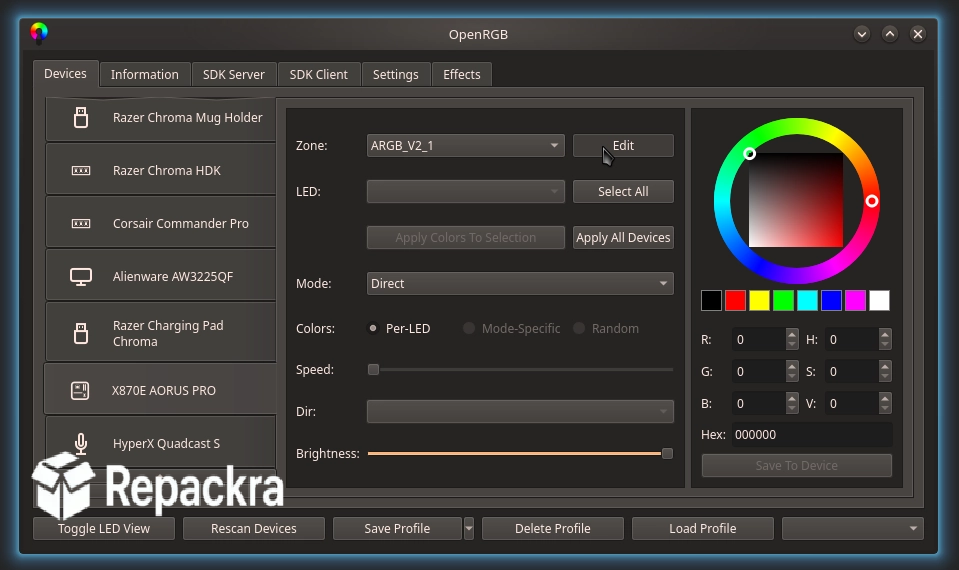
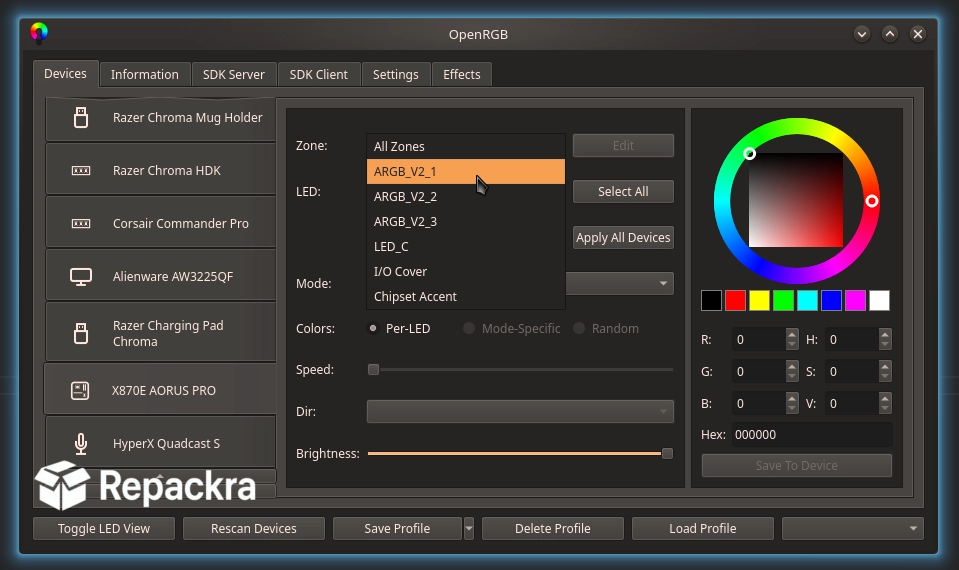
OpenRGB for Windows is the RGB lighting control tool that finally lets you manage every piece of RGB hardware in your system from one place without installing five different manufacturer apps that all conflict with each other and hog resources in the background.
Version 1.0rc3 brings the most stable and hardware compatible release yet as the project approaches its first full version milestone. I keep it running because having a single lightweight tool that controls my motherboard, RAM, GPU, and peripherals simultaneously is exactly what the RGB ecosystem should have always provided but never did.
OpenRGB Overview
OpenRGB for Windows is a free and open source RGB lighting control application that supports hundreds of devices from dozens of manufacturers and gives you unified control over all of them through one clean interface without requiring any proprietary software. It covers motherboards, graphics cards, RAM, coolers, fans, keyboards, mice, headsets,
and more through direct hardware communication that bypasses the bloated manufacturer ecosystems entirely. OpenRGB for Windows is the tool the RGB hardware industry should have built itself but never did.
PC enthusiasts who want the same unified and manufacturer free approach extended to their fan speeds and cooling profiles will find FanControl for Windows a natural companion, giving them precise control over every fan and pump in their system through one lightweight app that works alongside OpenRGB without any conflicts.
Key Features:
- Unified RGB control for hundreds of devices
- Supports motherboards, GPUs, RAM, and peripherals
- Multiple lighting effects and color modes
- Profile saving for different lighting setups
- Plugin system for extended device support
- SDK for integration with other applications
- Network server mode for remote control
- No manufacturer software required
- Lightweight with minimal resource usage
- Fully compatible with Windows 10 and Windows 11
What’s New in Version 1.0rc3
- Expanded device support across new hardware releases
- Improved stability ahead of full 1.0 release
- Better detection of conflicting manufacturer software
- Several bug fixes and compatibility improvements
System Requirements
- Windows 10 or later, 64-bit recommended
- 4 GB RAM minimum
- 100 MB storage space available
- Intel or AMD processor
- USB connected or motherboard integrated RGB devices
How to Install OpenRGB on Windows
- Download OpenRGB 1.0rc3 for Windows.
- Run the installer file.
- Follow the on screen installation steps.
- Launch OpenRGB for Windows.
- Let it detect your RGB devices and start configuring your lighting.
How to Download OpenRGB for Windows
- Visit the official OpenRGB website or GitLab page.
- Click the Download button for the Windows version.
- Wait for the installer to finish downloading.
- Open Downloads and run the installer.
- Follow the setup steps to complete installation.
Supported Websites
- OpenRGB Official Website
- GitLab Official Repository
- Softpedia
- MajorGeeks
- FileHippo
- Fosshub
- 1000+ other trusted sources
Why Use OpenRGB for Windows?
What makes OpenRGB for Windows the obvious choice for anyone with multiple RGB devices is how completely it eliminates the need for the manufacturer software ecosystem that most RGB hardware forces on you. Instead of running Armoury Crate, iCUE, Synapse, and Dragon Center simultaneously just to control different parts of your system,
OpenRGB for Windows handles all of them through a single lightweight process that uses a fraction of the resources. The profile system means switching between a gaming setup and a more subdued work lighting configuration takes one click rather than changing settings across multiple applications.
PC builders who want full visibility into what their hardware is actually doing while OpenRGB manages the lighting will find HWiNFO64 for PC an essential companion, delivering real time sensor data for temperatures, voltages, fan speeds, and GPU load across every component in the system. For anyone who has ever been frustrated by conflicting RGB software fighting over device control, OpenRGB for Windows is the straightforward solution.
OpenRGB vs Other RGB Control Tools
| Feature | OpenRGB | Others |
|---|---|---|
| Multi Manufacturer Device Support | Yes | Limited |
| No Proprietary Software Required | Yes | No |
| Open Source and Transparent | Yes | No |
| SDK for App Integration | Yes | Limited |
| Windows Optimized | Yes | No |








