

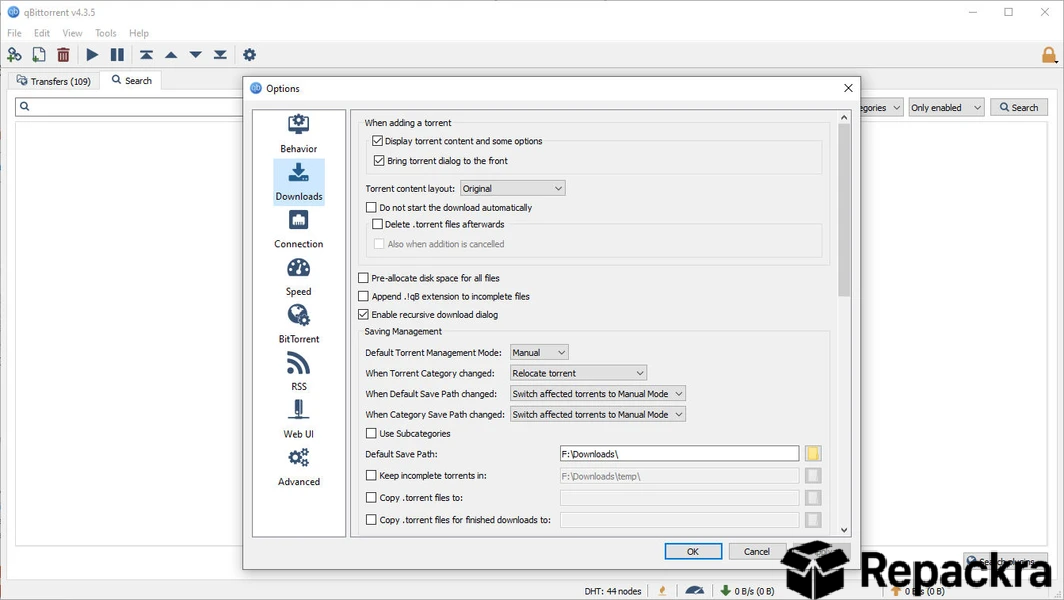
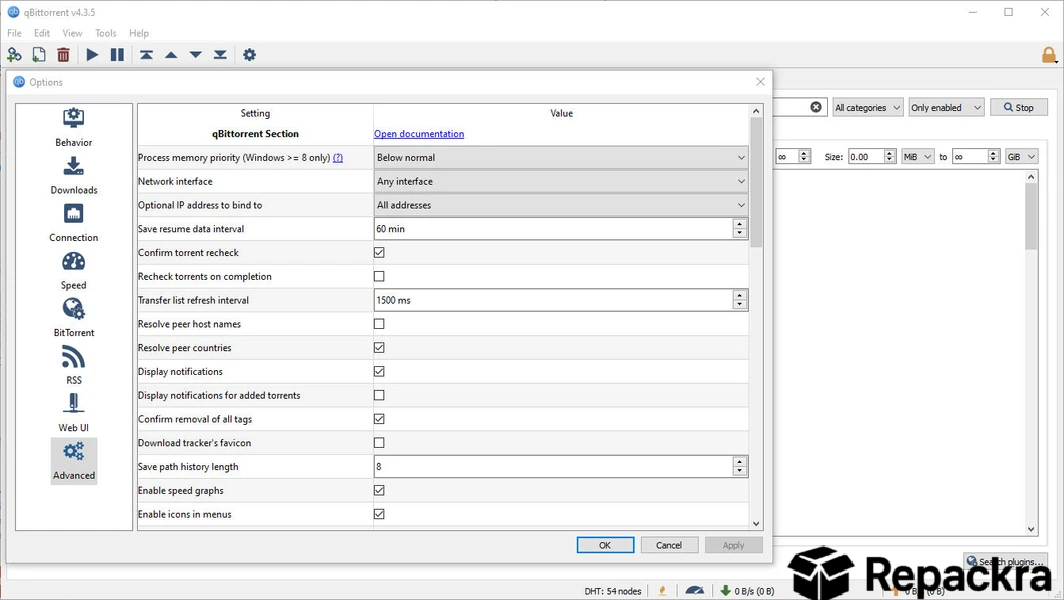
qBittorrent for Windows is the torrent client most people end up sticking with once they realize they don’t need anything fancier. Version 5.2.3 brings a cleaner and more stable experience that continues the tradition of keeping things simple, fast,
and completely free of the bloat that made older torrent clients so frustrating to use. I keep it as my default because it handles everything I throw at it without ever asking for anything in return.
qBittorrent Overview
qBittorrent for Windows is a lightweight and fully featured torrent client built as a clean open source alternative to the ad heavy clients that dominated the space for years. It handles single file downloads, large multi file torrents, and everything in between through a straightforward interface that requires no configuration to get started.
Once a download finishes, Stremio for Windows is what I usually open to actually watch the content, since it handles playback and organizes everything into a proper media library. qBittorrent for Windows gives you everything you actually need without anything you don’t.
Key Features:
- Clean and intuitive torrent management interface
- Built in torrent search engine
- Sequential downloading for media previewing
- Bandwidth scheduling and speed limiting
- IP filtering and privacy controls
- RSS feed support for automatic downloads
- Remote web interface for managing downloads remotely
- Magnet link and torrent file support
- Port forwarding and UPnP support
- Fully open source with no bundled software
What’s New in 5.2.3
- Improved torrent search engine compatibility
- Better handling of large multi file torrents
- Performance improvements across the interface
- Several bug fixes and stability improvements
System Requirements
- Windows 10 or later, 64-bit recommended
- 2 GB RAM minimum
- 100 MB storage for the application
- Active internet connection required
- Intel or AMD dual core processor
How to Install qBittorrent on Windows
- Download qBittorrent 5.2.3 for Windows.
- Run the installer file.
- Follow the on screen installation steps.
- Launch qBittorrent for Windows.
- Add your first torrent and start downloading.
How to Download qBittorrent for Windows
- Visit the official qBittorrent website.
- Click the Windows download button.
- Wait for the installer to finish downloading.
- Open Downloads and run the installer.
- Follow the setup steps to complete installation.
Supported Websites
- qBittorrent Official Website
- GitHub Official Repository
- Softpedia
- MajorGeeks
- FileHippo
- Fosshub
- 1000+ other trusted sources
Why Use qBittorrent for Windows?
The biggest reason people switch to qBittorrent for Windows and never look back is how honest and straightforward the whole experience is. No pop ups pushing third party installs, no ads tucked into corners of the interface, and no sudden changes that make it feel like the client has been handed off to someone trying to squeeze money out of it.
The built in search engine, RSS auto download support, and remote web interface cover everything most people realistically need without hunting for plugins. Once you configure it to your liking, qBittorrent for Windows basically disappears into the background and just does its job.
qBittorrent vs Other Torrent Clients
| Feature | qBittorrent | Others |
|---|---|---|
| Completely Ad Free | Yes | No |
| Built in Search Engine | Yes | Limited |
| RSS Auto Download | Yes | Limited |
| Remote Web Interface | Yes | Limited |
| Open Source | Yes | No |








