

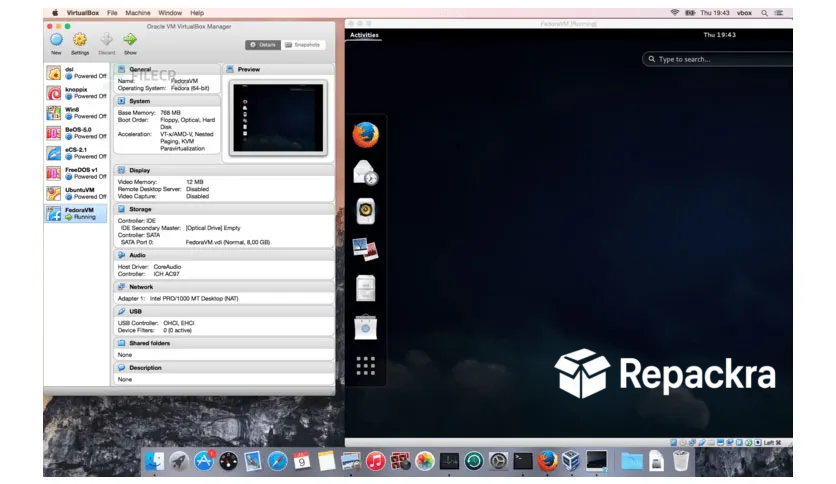
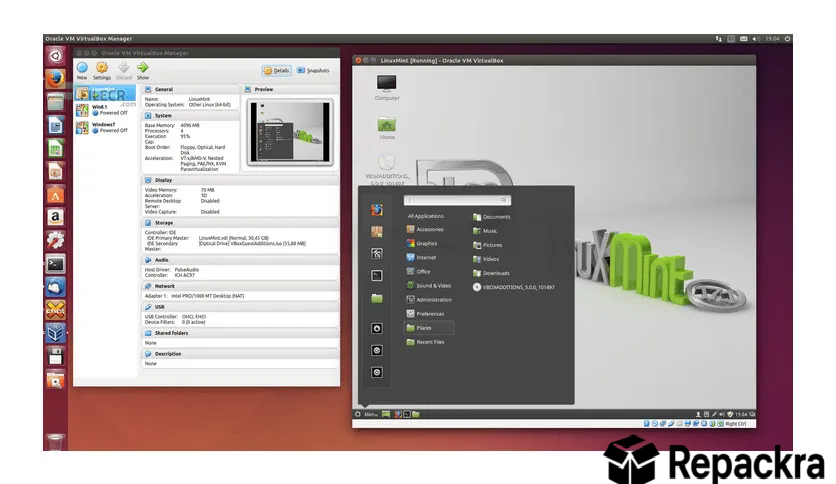
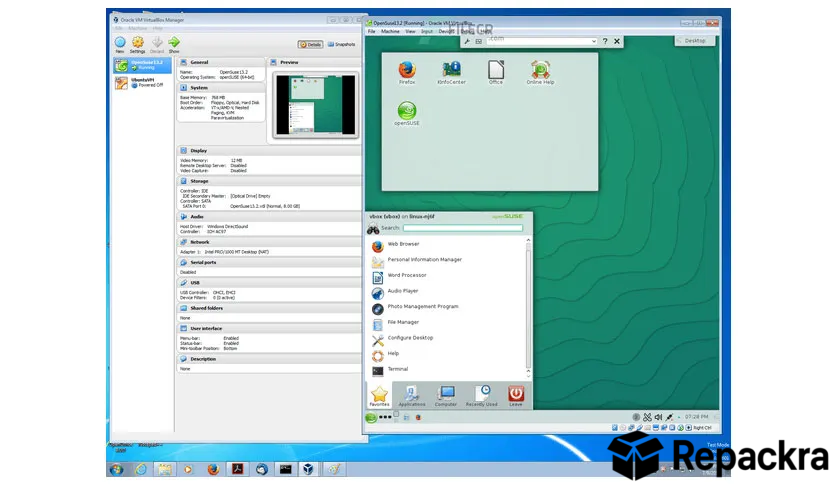
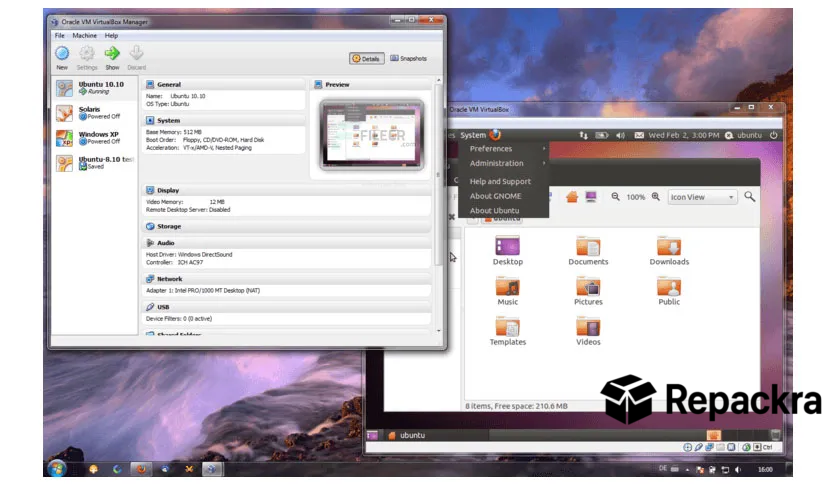
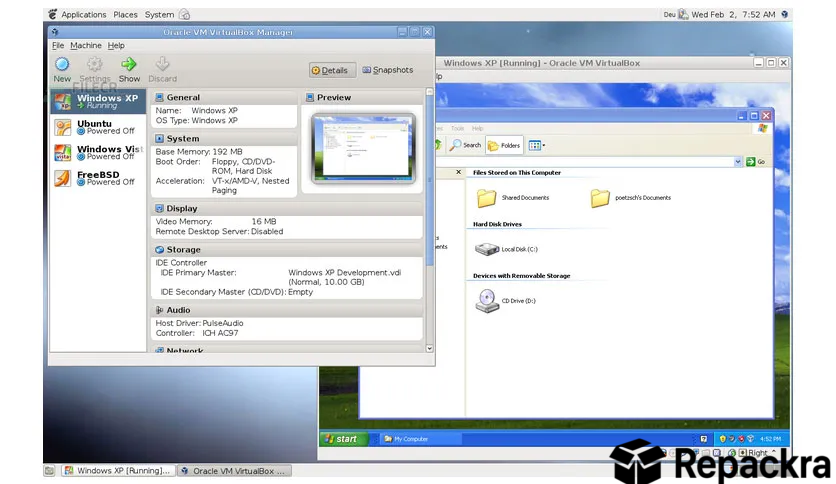
VirtualBox for Windows is the go to virtualization tool for anyone who needs to run multiple operating systems on a single machine without buying extra hardware. Version 7.2.12 brings a solid round of fixes and improvements that make the whole experience feel more stable and reliable for everyday use.
I use it constantly for testing software, running Linux alongside Windows, and setting up isolated environments that I can break without any consequences.
Users who need lightweight application level isolation without spinning up a full virtual machine will find Sandboxie for Windows a natural companion, letting them run individual programs in a disposable sandbox that discards every change the moment it closes.
VirtualBox Overview
VirtualBox for Windows is a powerful and open source virtualization platform developed by Oracle that lets you create and run virtual machines directly on your Windows PC. Each virtual machine runs its own operating system completely isolated from your host system,
so you can experiment, test, and develop without any risk to your main setup. VirtualBox for Windows handles everything from old Windows XP installs to the latest Linux distributions without breaking a sweat.
Users who want to explore Arch Linux ISO 64-bit without touching their main system get one of the best sandboxed environments to learn and experiment with it risk free inside a VM.
Key Features
- Create and run multiple virtual machines simultaneously
- Supports Windows, Linux, macOS, and BSD guest systems
- Snapshots for saving and restoring VM states instantly
- Seamless mode for integrating guest apps into host desktop
- Shared folders between host and guest systems
- USB device passthrough support
- Virtual networking with NAT, bridged, and host only modes
- Drag and drop file sharing between host and guest
- Command line interface for advanced automation
- Completely open source with active community support
What’s New in 7.2.12
- Improved guest additions stability across Windows and Linux
- Better USB passthrough reliability
- Several networking fixes for bridged adapter mode
- General stability improvements throughout
System Requirements
- Windows 10 or later, 64-bit
- 4 GB RAM minimum, 8 GB recommended
- 200 MB storage for VirtualBox itself plus space for VMs
- Intel or AMD processor with virtualization support enabled
- VT-x or AMD-V must be enabled in BIOS
How to Install VirtualBox on Windows
- Download VirtualBox 7.2.12 for Windows.
- Run the installer file.
- Follow the on screen installation steps.
- Launch VirtualBox for Windows.
- Create your first virtual machine and install a guest OS.
How to Download VirtualBox for Windows
- Visit the official VirtualBox website.
- Click the Windows hosts download link.
- Wait for the installer to finish downloading.
- Open Downloads and run the installer.
- Follow the setup steps to complete installation.
Supported Websites
- VirtualBox Official Website
- Oracle Official Website
- Softpedia
- MajorGeeks
- FileHippo
- Fosshub
- 1000+ other trusted sources
Why Use VirtualBox for Windows?
What makes VirtualBox for Windows genuinely useful is the freedom it gives you to run whatever you need without permanently committing to it. You can spin up a Linux VM to learn a new distro, test software in an isolated Windows environment before installing it on your real machine, or keep an old OS alive for legacy software that refuses to run on modern Windows.
The snapshot system is particularly valuable because you can save the exact state of a VM before making risky changes and roll back instantly if something breaks. Android enthusiasts who want to run a full Android desktop experience on their PC will find Bliss OS ISO 64-bit one of the most capable guest systems,
to fire up inside VirtualBox for testing apps and exploring Android beyond a phone screen.For developers, testers, and curious users alike VirtualBox for Windows offers a level of flexibility that’s hard to replace.
VirtualBox vs Other Virtualization Tools
| Feature | VirtualBox | Others |
|---|---|---|
| Open Source | Yes | No |
| Snapshot Support | Yes | Limited |
| Multi OS Guest Support | Yes | Limited |
| Seamless Mode | Yes | No |
| Windows Optimized | Yes | No |








