

Chocolatey for PC is the package manager that makes installing, updating, and managing software on Windows feel as effortless as it does on Linux, and once you experience it you genuinely wonder why Windows didn’t ship with something like this from the start.
Version 2.7.3 brings a more stable and capable experience for anyone who manages software installations across one machine or many and wants to stop manually hunting down installers for every individual app. I use it on every machine I set up because automating software installation with a single command or script saves an embarrassing amount of time compared to doing it the old way.
Windows users who want a powerful all in one tool for system optimization, debloating, and tweaking alongside their package management workflow will find Chris Titus Tech Utility (CTT) a natural companion, handling the system configuration side that Chocolatey does not touch.
Chocolatey Overview
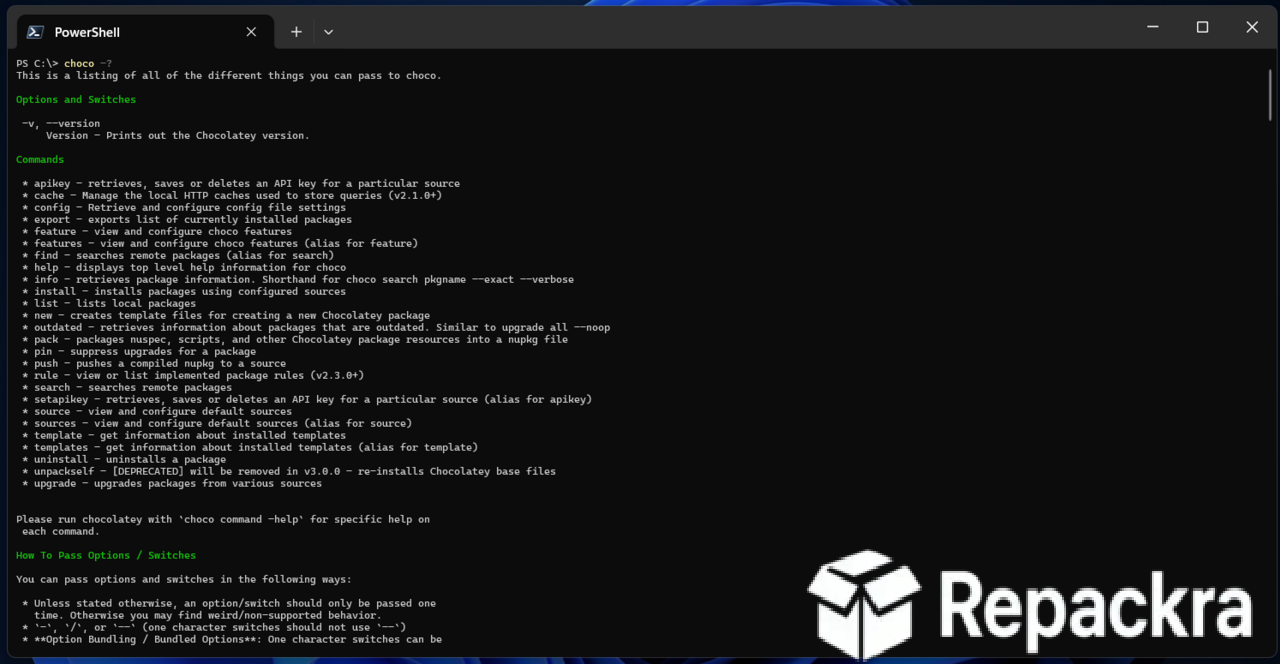
Chocolatey for PC is a command line package manager for Windows that lets you install, update, and remove software through simple terminal commands using a repository of thousands of community maintained and verified packages. It handles downloading, installing silently,
and keeping software updated without you visiting individual websites or clicking through setup wizards for each application. Chocolatey for PC is the closest Windows gets to the package management experience that Linux users have always taken for granted.
Users who want a clean graphical frontend over Chocolatey and other package managers without giving up any of the power underneath will find UniGetUI for PC a natural companion, bringing Winget, Scoop, Chocolatey, and pip together into one organized dashboard for the moments when a visual interface is simply faster than typing commands.
Key Features
- Install software via simple command line commands
- Repository of thousands of community packages
- Silent installation without manual setup wizards
- Bulk software installation via package lists
- Automatic update checking and bulk updates
- Package version pinning for specific app versions
- Integration with PowerShell and scripting workflows
- Proxy and enterprise network support
- Package verification and checksum validation
- Fully compatible with Windows 10 and Windows 11
What’s New in Version 2.7.3
- Improved package resolution and dependency handling
- Better compatibility with latest Windows 11 builds
- Updated package verification mechanisms
- Several bug fixes and stability improvements
System Requirements
- Windows 7 or later, 64-bit recommended
- 2 GB RAM minimum
- 400 MB storage space available
- PowerShell 2.0 or later required
- Active internet connection for package downloads
How to Install Chocolatey on PC
- Open PowerShell as Administrator.
- Run the official Chocolatey installation command from chocolatey.org.
- Wait for the installation to complete.
- Close and reopen PowerShell as Administrator.
- Run choco install followed by any package name to start installing software.
How to Download Chocolatey for PC
- Visit the official Chocolatey website at chocolatey.org.
- Navigate to the installation instructions page.
- Copy the PowerShell installation command.
- Open PowerShell as Administrator and paste the command.
- Follow any prompts to complete the installation.
Supported Websites
- Chocolatey Official Website
- GitHub Official Repository
- Softpedia
- MajorGeeks
- FileHippo
- Fosshub
- 1000+ other trusted sources
Why Use Chocolatey for PC?
What makes Chocolatey for PC genuinely transformative for anyone who sets up and maintains Windows machines is how completely it changes the software management workflow. Instead of opening a browser, searching for each application,
finding the right download page, running each installer, and clicking through setup screens for every piece of software you need, you write a single script listing everything you want and run it once. New machine setup that used to take an hour of manual work becomes a five minute automated process.
The bulk update command is equally valuable for keeping everything current without visiting a dozen individual app update dialogs scattered across different programs. Developers who run their Chocolatey commands through PowerShell for Windows get the most out of the scripting integration, using object based pipelines and automation workflows that take Chocolatey’s package management well beyond simple installs.
Power users who want those same commands running inside a modern tabbed terminal with GPU accelerated rendering and full customization will find Windows Terminal for Windows the most capable and pleasant environment to run Chocolatey from every single day.
Chocolatey vs Other Package Managers
| Feature | Chocolatey | Others |
|---|---|---|
| Thousands of Windows Packages | Yes | Limited |
| Silent Background Installation | Yes | Limited |
| Bulk Update All Packages | Yes | Limited |
| PowerShell Script Integration | Yes | No |
| Windows Optimized | Yes | No |








