

CTT Utility for PC is the all in one Windows optimization and configuration tool from Chris Titus Tech that has become one of the most recommended starting points for anyone setting up a fresh Windows installation and wanting it to actually behave the way a power user expects. Version 26.08.04 brings the latest round of tweaks, fixes, and software management improvements that keep it current with the latest Windows builds.
I use it on every fresh Windows setup because the combination of debloating, privacy tweaks, and software installation in one place saves an enormous amount of time compared to doing each step manually. For anyone who prefers a graphical dashboard over running a PowerShell command, WinToys for PC covers a lot of the same ground through a more point and click interface.
CTT Utility Overview
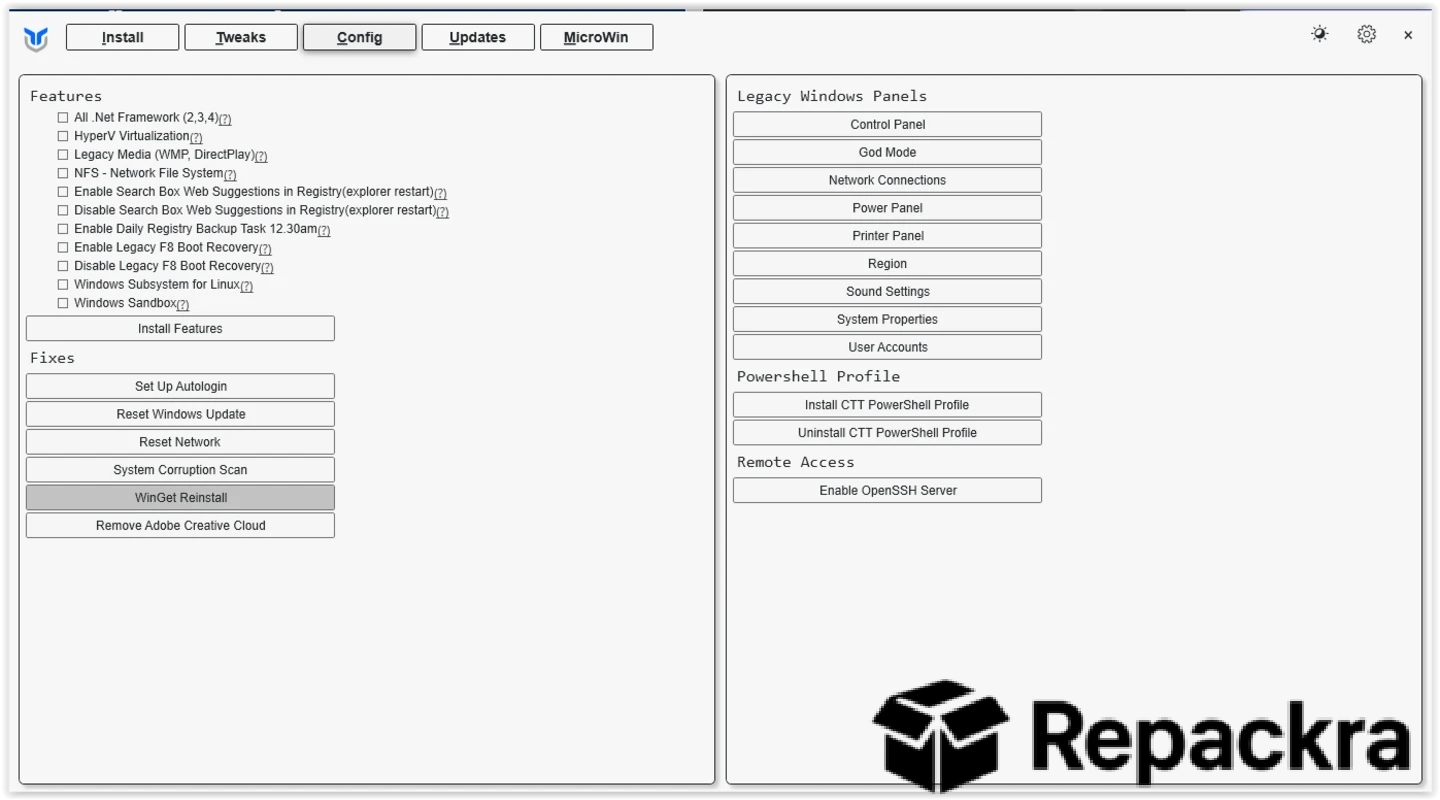
CTT Utility for PC is a free and open source PowerShell based Windows utility that covers debloating, privacy configuration, performance tweaks, and software installation through a clean and straightforward graphical interface. It pulls directly from the official GitHub repository every time you run it so you always get the most current version without needing to download and install updates manually.
For those who want even more granular explanations behind each individual privacy toggle before applying it, SophiApp for PC takes a slower and more documented approach that pairs well with the quicker sweep CTT Utility offers. CTT Utility for PC is the kind of tool that gets passed around in tech communities because it genuinely works and saves real time on every Windows setup.
Key Features:
- Windows debloating with selectable app removal
- Privacy and telemetry configuration options
- Performance tweaks for desktop and laptop use
- Software installation from a curated app list
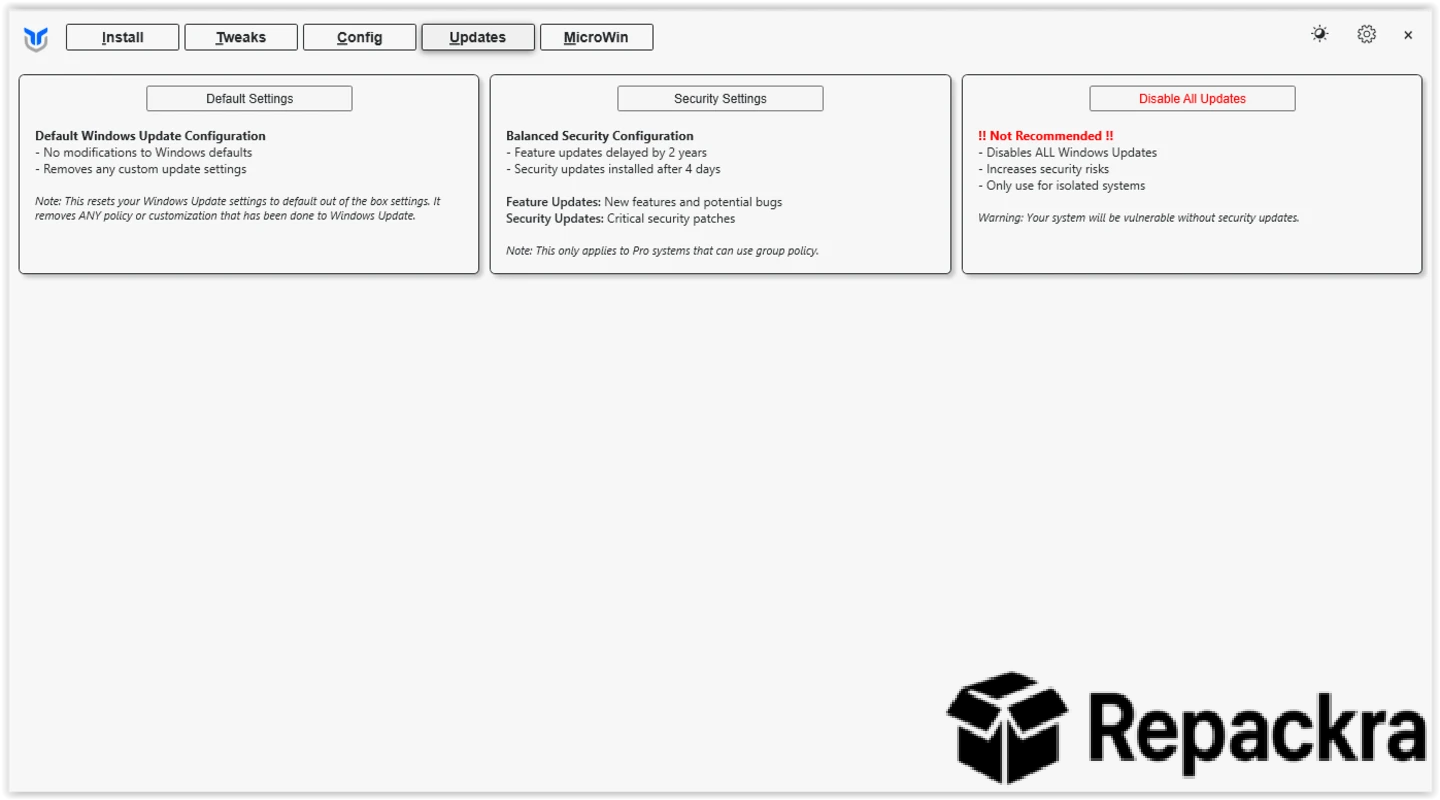
- Windows Update management and control
- DNS configuration for faster and more private browsing
- Essential fixes for common Windows annoyances
- Runs directly from PowerShell without full installation
- Always pulls the latest version from GitHub on launch
- Fully compatible with Windows 10 and Windows 11
What’s New in Version 26.08.04
- Updated software installation list with new app additions
- Improved Windows 11 24H2 compatibility throughout
- Better detection of already installed applications
- Several bug fixes and stability improvements
System Requirements
- Windows 10 or later, 64-bit
- 4 GB RAM minimum
- No permanent storage required since it runs from PowerShell
- Intel or AMD dual core processor
- Active internet connection required to pull the latest script
How to Install CTT Utility on PC
- Open PowerShell as Administrator.
- Run the official CTT launch command from christitus.com/win.
- Wait for the interface to load from GitHub.
- Browse the tabs and apply your preferred tweaks and installs.
- Restart your PC when prompted to finalize changes.
How to Download CTT Utility for PC
- Visit the official Chris Titus Tech website at christitus.com.
- Navigate to the Windows utility page.
- Copy the PowerShell launch command.
- Open PowerShell as Administrator and paste the command.
- The utility loads automatically without any download needed.
Supported Websites
- Chris Titus Tech Official Website
- GitHub Official Repository
- Softpedia
- MajorGeeks
- FileHippo
- Fosshub
- 1000+ other trusted sources
Why Use CTT Utility for PC?
What makes CTT Utility for PC genuinely valuable for anyone setting up or refreshing a Windows machine is how much ground it covers in a single session without requiring deep technical knowledge to use safely. The debloating options let you remove specific,
Windows apps rather than nuking everything blindly and the software installation, tab means you can get your essential applications installed from a curated list without visiting individual download pages for each one.
The fact that it pulls fresh from GitHub every run means you’re always working with current tweaks that account for the latest Windows changes rather than outdated advice baked into an old installer.
For setting up multiple machines with a similarly scripted approach, Optimizer for PC is worth having as an alternative or companion pass, and once the deeper system tweaks are done, Microsoft PowerToys is usually what I install last for the everyday conveniences like window snapping that round out the setup.
For IT professionals, enthusiasts, and anyone who sets up Windows machines regularly, CTT Utility for PC is one of the most efficient tools available for getting a system into a properly configured state quickly.
CTT Utility vs Other Windows Tweaking Tools
| Feature | CTT Utility | Others |
|---|---|---|
| Always Current from GitHub | Yes | No |
| Software Installation Built In | Yes | Limited |
| Selective Debloating Options | Yes | Limited |
| No Permanent Installation Needed | Yes | No |
| Windows Optimized | Yes | No |








