

PowerToys for Windows is the official Microsoft utility suite that adds the kind of power user features that Windows should have shipped with years ago and keeps getting better with every release. Version 0.100.2 brings a more stable and refined experience across the entire suite of tools that has become an essential part of how serious Windows users manage their workflow.
I keep it installed on every machine because the combination of window management, file renaming, and keyboard remapping alone saves more time than any other single utility I run.
Windows users who want to go further with system debloating, privacy tweaks, and OS optimization beyond what PowerToys covers will find Chris Titus Tech Utility for Windows a powerful companion, handling the deep system configuration side that PowerToys deliberately leaves untouched.
PowerToys Overview
PowerToys for Windows is a free collection of utilities built by Microsoft that extends Windows with tools covering window management, file operations, keyboard customization, color picking, system information, and much more all from one consistently designed package. Each tool operates independently so you enable only what you actually need without any unused components running in the background.
PowerToys for Windows is the official answer to the question of why Windows doesn’t do more out of the box for power users. Users who want a more visually polished and consumer friendly way to tweak Windows settings and manage system behavior alongside PowerToys will find WinToys for Windows a natural companion,
bringing a beautifully designed dashboard for system tweaks and app management that complements PowerToys’ more utility focused approach.
Key Features
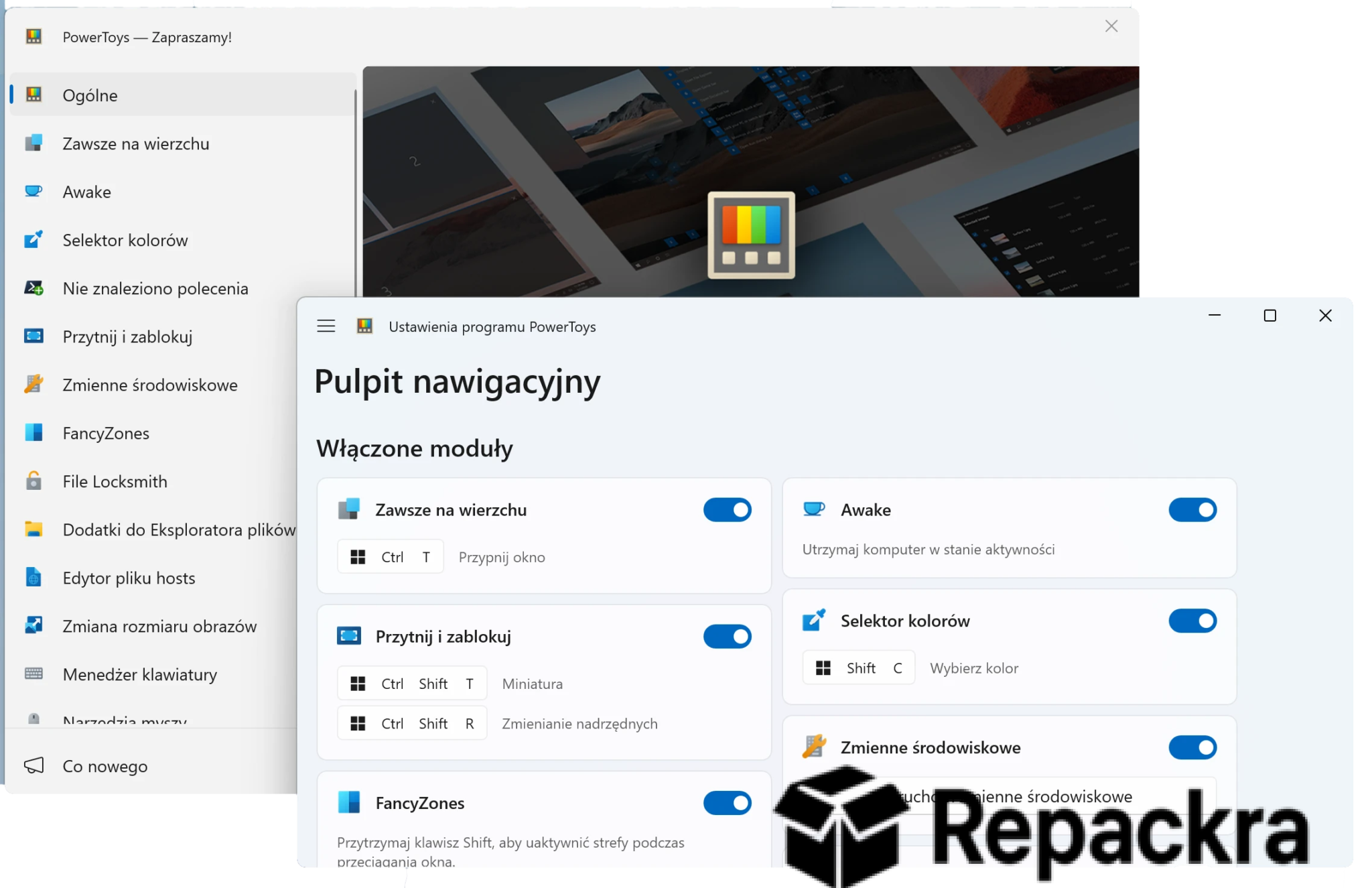
- FancyZones for custom window layout management
- PowerRename for batch file renaming with regex
- Keyboard Manager for remapping keys and shortcuts
- Color Picker for system wide color sampling
- File Explorer Add-ons for extended preview support
- Run launcher for fast app and file search
- Always on Top for pinning windows above others
- Mouse utilities for enhanced cursor control
- Text Extractor for OCR from any screen content
- Hosts File Editor for easy network configuration
What’s New in Version 0.100.2
- Stability improvements across multiple utilities
- Better Windows 11 24H2 compatibility throughout
- Updated FancyZones layout detection
- Several bug fixes reported by the community
System Requirements
- Windows 10 or later, 64-bit
- 4 GB RAM minimum
- 500 MB storage space available
- Intel or AMD dual core processor
- Active internet connection for updates
How to Install PowerToys on Windows
- Download PowerToys 0.100.2 for Windows.
- Run the installer file.
- Follow the on screen installation steps.
- Launch PowerToys for Windows.
- Enable the tools you want and configure each one to your preference.
How to Download PowerToys for Windows
- Visit the official PowerToys GitHub page or Microsoft Store.
- Click the Download button for the Windows version.
- Wait for the installer to finish downloading.
- Open Downloads and run the installer.
- Follow the setup steps to complete installation.
Supported Websites
- PowerToys GitHub Official Page
- Microsoft Store
- Microsoft Official Website
- Softpedia
- MajorGeeks
- Fosshub
- 1000+ other trusted sources
Why Use PowerToys for Windows?
What makes PowerToys for Windows genuinely indispensable for anyone who spends serious time on a Windows machine is how many individually valuable tools it brings together without any of them feeling half baked or tacked on. FancyZones alone changes how you use multiple monitors and a wide screen display in a way that Window Snap never quite managed and PowerRename handles,
file organization tasks in seconds that would take minutes of manual renaming. The Run launcher is fast enough to compete with third party alternatives and having it built into an official Microsoft tool means it stays reliable across Windows updates without the compatibility anxiety that comes with third party launchers.
Users who want a more advanced and script driven approach to Windows privacy settings, telemetry control, and system fine tuning will find SophiApp for Windows a natural next step, offering granular control over Windows behavior that goes well beyond what any GUI based utility exposes. For anyone who considers themselves a serious Windows user, PowerToys for Windows is simply one of the first things that should be installed on any new machine.
PowerToys vs Other Windows Utility Suites
| Feature | PowerToys | Others |
|---|---|---|
| Official Microsoft Development | Yes | No |
| FancyZones Window Management | Yes | Limited |
| Batch File Renaming with Regex | Yes | Limited |
| System Wide OCR Text Extraction | Yes | No |
| Windows Optimized | Yes | No |








