

7-Zip for PC is the file compression tool that has quietly sat on the desktop of almost every serious Windows user for decades and for genuinely good reason. Version 26.02 brings the latest round of improvements to an already rock solid utility that handles compression and extraction faster and more reliably than most alternatives.
I keep it installed on every machine I set up because it handles every archive format I throw at it without complaint. Users who want that same reliable compression but with a more modern interface built around it will find PeaZip for PC a natural alternative worth trying, offering a similar free and open source approach with a slightly different feature set.
7-Zip Overview
7-Zip for PC is a lightweight and powerful open source file archiver that supports a huge range of compression formats and consistently delivers better compression ratios than most competing tools. It integrates directly into Windows Explorer through a right click context menu so you never have to open a separate application just to zip or extract something.
7-Zip for PC is one of those essential utilities that earns its place on every Windows machine immediately. Users who want that same core 7-Zip engine but wrapped in a more modern context menu and interface optimized for newer versions of Windows will find NanaZip for PC a natural companion, built directly on top of the same compression technology with a design that feels more at home on Windows 11.
Key Features
- High compression ratio with the 7z format
- Supports ZIP, RAR, TAR, GZI, ISO, and many more formats
- AES-256 encryption for secure archive creation
- Self extracting archive creation support
- Windows Explorer context menu integration
- Command line interface for advanced automation
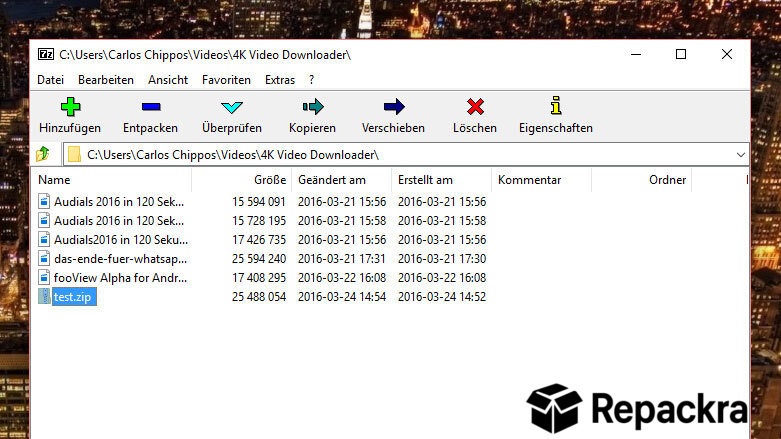
- File manager with dual pane interface
- Unicode file name support
- Multi core processor support for faster compression
- Completely open source with no bundled software
What’s New in Version 26.02
- Improved compression speed on modern multi core processors
- Better handling of large archive files
- Updated AES encryption implementation
- Several bug fixes and stability improvements
System Requirements
- Windows 7 or later, 64-bit recommended
- 2 GB RAM minimum
- 5 MB storage for the application itself
- Intel or AMD dual core processor
- No internet connection required
How to Install 7-Zip on PC
- Download 7-Zip 26.02 64-bit for PC.
- Run the installer file.
- Follow the on screen installation steps.
- Launch 7-Zip for PC or use it directly from right click context menu.
- Start compressing and extracting files immediately.
How to Download 7-Zip for PC
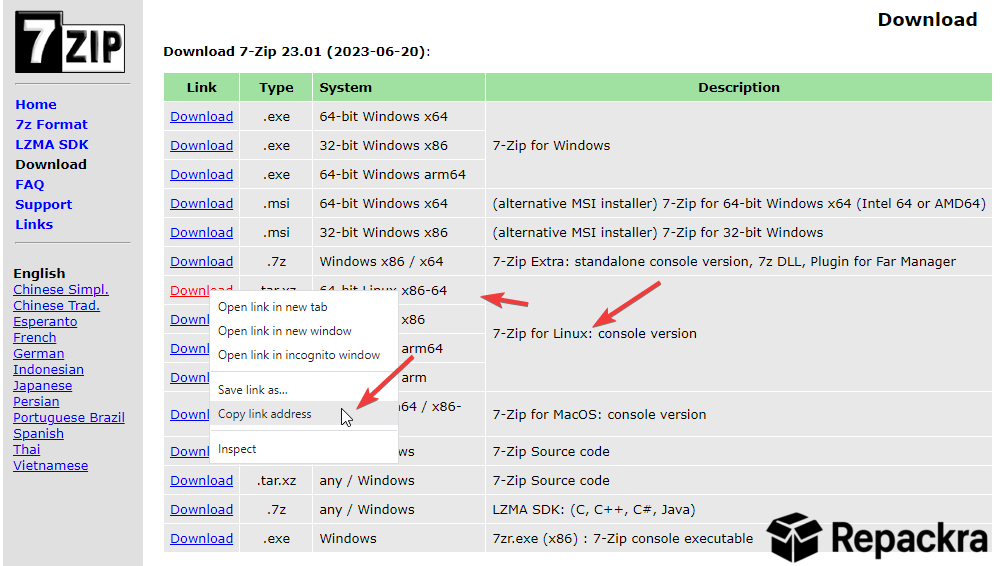
- Visit the official 7-Zip website at 7-zip.org.
- Click the 64-bit Windows download link.
- Wait for the installer to finish downloading.
- Open Downloads and run the installer.
- Follow the setup steps to complete installation.
Supported Websites
- 7-Zip Official Website
- GitHub Official Repository
- Softpedia
- MajorGeeks
- FileHippo
- Fosshub
- 1000+ other trusted sources
Why Use 7-Zip for PC?
What makes 7-Zip for PC the default choice for so many people is how it just handles everything without making you think about it. Right click any file or folder, choose your compression settings, and it’s done. The 7z format consistently produces smaller archives than ZIP for most file types, and the AES-256 encryption means you can password protect sensitive archives with confidence.
The fact that it opens RAR files without needing WinRAR installed is a bonus that saves a lot of hassle on its own. Mac users who want that same fast, reliable archiving experience on their own platform will find Keka for Mac the closest equivalent, bringing a similarly clean and free compression tool to macOS. Once it’s installed and integrated into your context menu, 7-Zip for PC becomes completely invisible in the best possible way.
7-Zip vs Other Compression Tools
| Feature | 7-Zip | Others |
|---|---|---|
| High Compression 7z Format | Yes | Limited |
| AES-256 Encryption | Yes | Limited |
| RAR Extraction Support | Yes | Limited |
| Completely Open Source | Yes | No |
| Windows Optimized | Yes | No |








