
CrystalDiskInfo for PC is the drive health monitoring tool that gives you a clear and honest picture of how your hard drives and SSDs are actually doing before they decide to fail at the worst possible moment. Version 9.9.2 brings a more refined and compatible experience for anyone who wants to keep an eye,
on their storage health without installing bloated software just to read some S.M.A.R.T. data. I keep it installed because knowing the health status of every drive in my system at a glance is the kind of basic situational awareness that has saved me from unexpected data loss more than once.
CrystalDiskInfo Overview
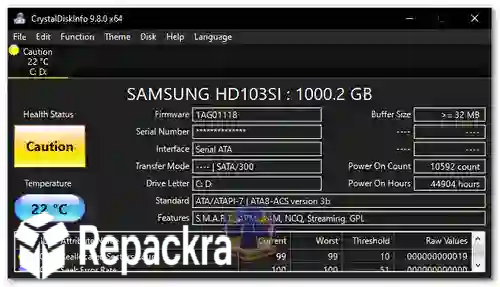
CrystalDiskInfo for PC is a lightweight and free disk health monitoring utility that reads S.M.A.R.T. data from your hard drives and SSDs and presents it in a clear and organized interface that tells you immediately whether your drives are healthy, caution worthy, or approaching failure. It supports traditional hard drives, SSDs,
NVMe drives, and external USB storage and can alert you when drive health drops below acceptable thresholds. CrystalDiskInfo for PC is one of those essential utilities that every Windows user should have installed and running in the background permanently.
Anyone who wants that same depth of insight extended beyond just storage and into CPU, motherboard, and sensor data will find HWiNFO64 for PC a natural companion, giving a complete diagnostic picture of the whole system alongside the drive specific details CrystalDiskInfo already covers.
Key Features:
- S.M.A.R.T. data reading for all drive types
- Health status display with clear Good Caution Bad indicators
- Temperature monitoring for all connected drives
- NVMe and USB drive support
- Email and sound alerts for health threshold changes
- Drive information including firmware and serial number
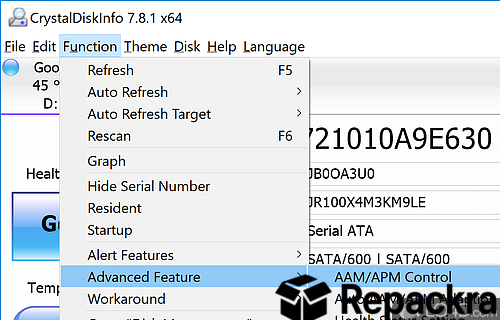
- Graph view for tracking attribute changes over time
- Startup monitoring for always on background checking
- Portable version available with no installation needed
- Fully compatible with Windows 10 and Windows 11
What’s New in Version 9.9.2
- Improved NVMe drive compatibility on newer controllers
- Better USB drive detection accuracy
- Updated S.M.A.R.T. attribute interpretation for modern SSDs
- Several bug fixes and stability improvements
System Requirements
- Windows 7 or later, 64-bit recommended
- 2 GB RAM minimum
- 10 MB storage for the application itself
- Intel or AMD dual core processor
- Administrator privileges recommended for full drive access
How to Install CrystalDiskInfo on PC
- Download CrystalDiskInfo 9.9.2 for PC.
- Run the installer file.
- Follow the on screen installation steps.
- Launch CrystalDiskInfo for PC.
- Review the health status of all your connected drives immediately.
How to Download CrystalDiskInfo for PC
- Visit the official CrystalDiskInfo website.
- Click the Download button for the Windows version.
- Wait for the installer to finish downloading.
- Open Downloads and run the installer.
- Follow the setup steps to complete installation.
Supported Websites
- CrystalDiskInfo Official Website
- Softpedia
- MajorGeeks
- FileHippo
- Fosshub
- Filehorse
- 1000+ other trusted sources
Why Use CrystalDiskInfo for PC?
What makes CrystalDiskInfo for PC genuinely valuable as a permanent background utility is how early it can catch warning signs that you would never notice any other way until it was too late. A drive showing reallocated sectors or increasing uncorrectable errors in its S.M.A.R.T.
data is sending a clear signal that something is wrong long before any performance degradation becomes obvious and CrystalDiskInfo for PC puts that signal directly in front of you in plain language. The temperature monitoring is equally useful for anyone with drives running in warm cases since sustained high temperatures accelerate drive wear in ways that only become apparent after the damage is done.
For the minimal resource footprint it uses in the background, the peace of mind it provides about drive health is one of the best returns on investment of any utility you can run on Windows.
CrystalDiskInfo vs Other Disk Health Tools
| Feature | CrystalDiskInfo | Others |
|---|---|---|
| Clear Health Status Indicators | Yes | Limited |
| NVMe and USB Support | Yes | Limited |
| Historical Attribute Graphs | Yes | Limited |
| Health Alert Notifications | Yes | Limited |
| Windows Optimized | Yes | No |








