

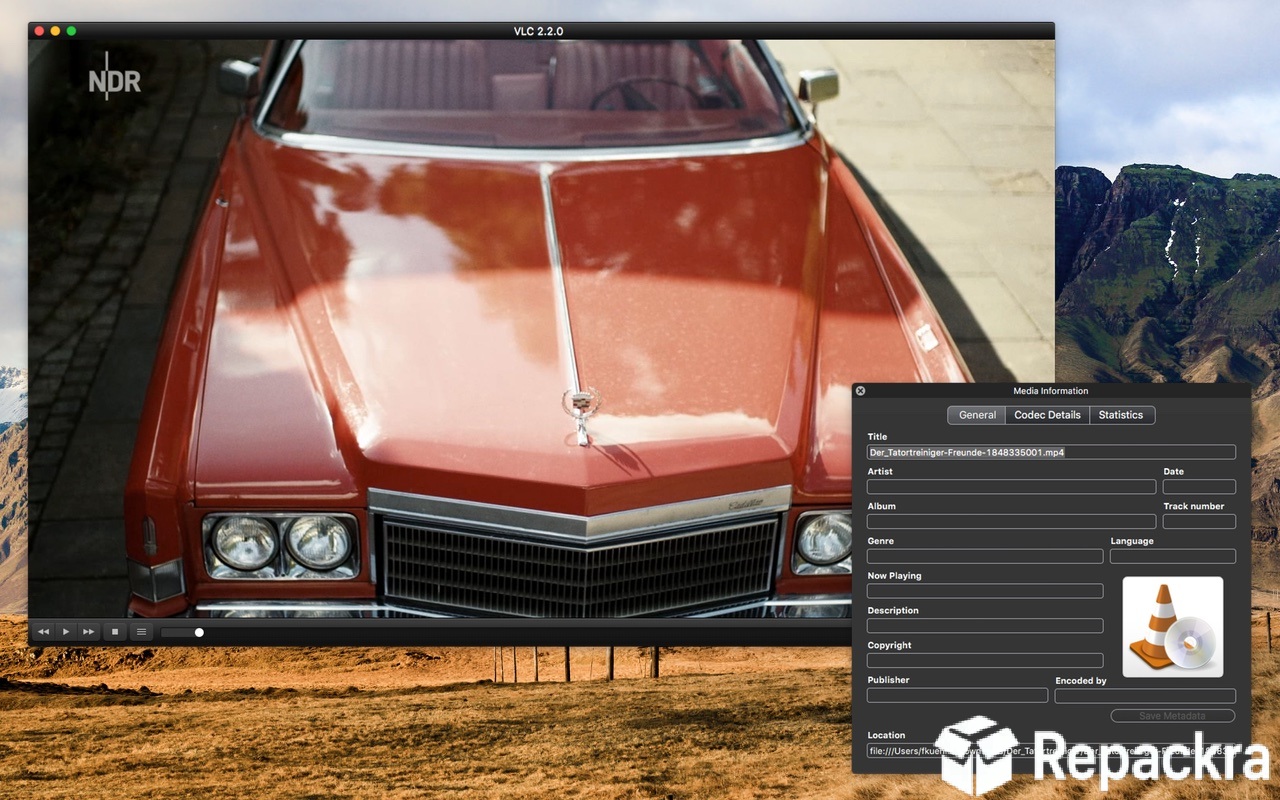
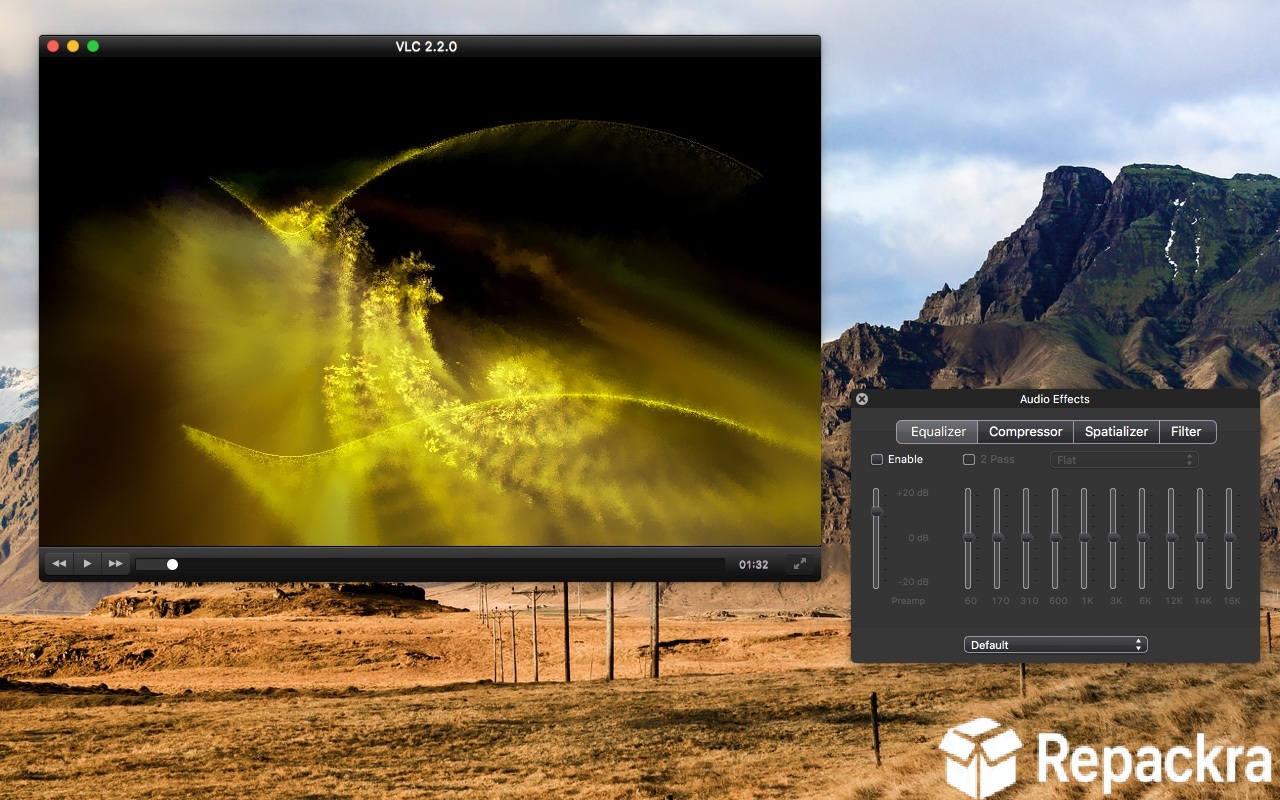
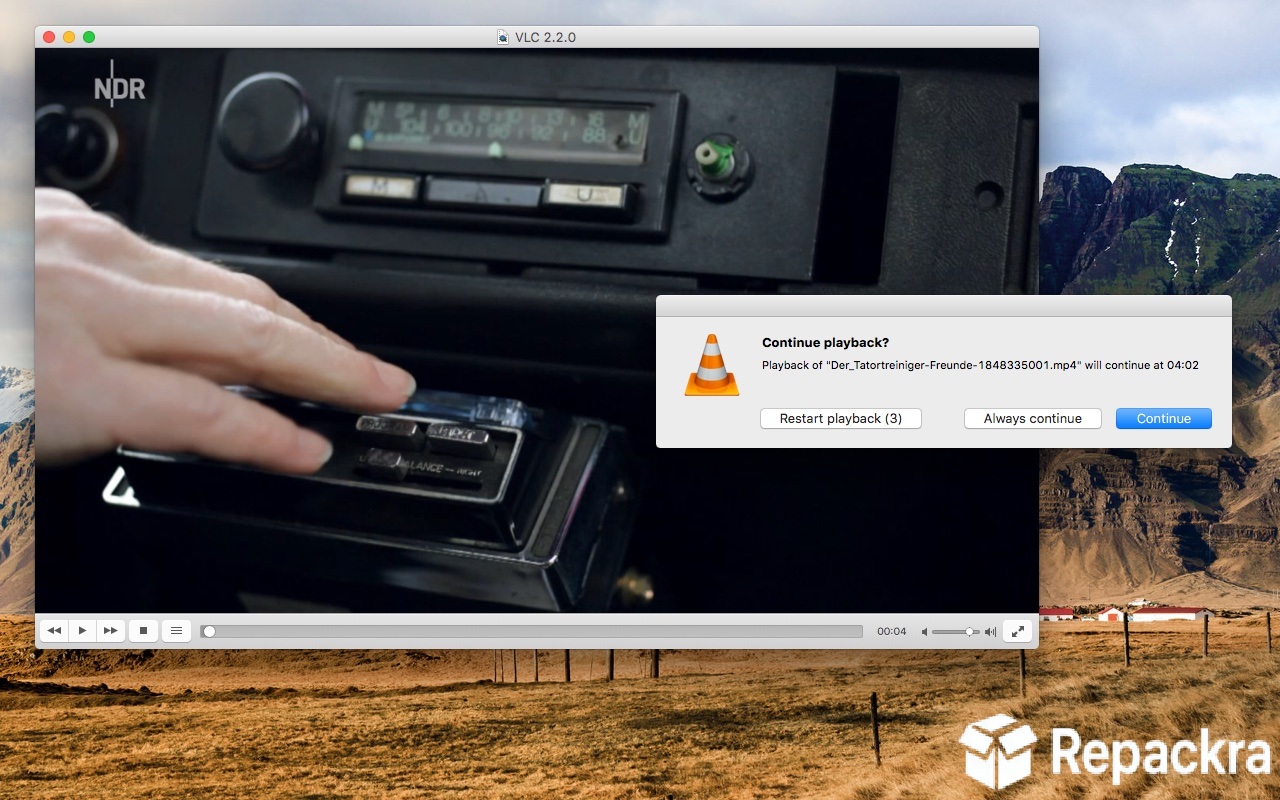
VLC for Mac is the media player that has been quietly sitting on millions of Macs for years and still gets reached for first whenever something refuses to play in any other app. Version 3.0.23 brings another round of stability fixes and compatibility improvements to a player that already handles more formats than anything else available.
I keep it installed because no matter what file someone sends me, VLC for Mac just opens it without any drama. Content creators who need to trim and cut their video files before playing them back will find LosslessCut for Mac a perfect companion, cutting any format in seconds with zero quality loss and no re-encoding so every clip looks exactly as sharp as the original when it opens in VLC.
VLC Overview
VLC for Mac is a free and open source media player developed by VideoLAN that plays virtually every audio and video format ever created without requiring additional codecs or plugins. It handles everything from common MP4 and MKV files to obscure formats that most players have never heard of, all from a clean and straightforward interface that has barely needed to change because it already works exactly as it should. VLC for Mac is the media player equivalent of a Swiss Army knife.
Windows users making the switch to Mac who miss their old go to player will find Media Player Classic (MPC-HC) worth knowing about, though its Mac availability is limited compared to the seamless cross platform reliability VLC already delivers out of the box.
Key Features:
- Plays virtually every video and audio format available
- Hardware accelerated video decoding support
- Subtitle support including automatic subtitle download
- Audio and video filter and effects library
- Network stream and online media playback
- DVD and Blu-ray disc playback support
- Picture in Picture mode support
- Playback speed control and frame by frame stepping
- Podcast and media library management
- Fully compatible with macOS Sequoia
What’s New in Version 3.0.23
- Improved compatibility with newer video format variants
- Better hardware decoding stability on Apple Silicon
- Several security vulnerabilities patched
- General stability improvements throughout
System Requirements
- macOS 10.12 or later
- 2 GB RAM minimum
- 150 MB storage space available
- Intel or Apple Silicon Mac supported
How to Install VLC on Mac
- Download VLC 3.0.23 for Mac.
- Open the DMG file.
- Drag VLC to your Applications folder.
- Launch VLC for Mac.
- Open any media file and start playing.
How to Download VLC for Mac
- Visit the official VLC website at videolan.org.
- Click the Download VLC button for Mac.
- Wait for the DMG file to finish downloading.
- Open Downloads and open the DMG file.
- Drag to Applications and launch.
Supported Websites
- VideoLAN Official Website
- Apple Mac App Store
- MacUpdate
- Softpedia
- Fosshub
- Filehorse
- 1000+ other trusted sources
Why Use VLC for Mac?
The honest answer to why VLC for Mac remains the go to media player after all these years is reliability. It opens files that other players choke on, it handles damaged or incomplete video files better than anything else, and it never asks you to install additional codecs or update a subscription to unlock a feature.
The playback speed controls are surprisingly useful for anyone who watches lectures or podcasts, and the subtitle support covers everything from manually loaded SRT files to automatic downloads. Once VLC for Mac is set as your default player, the days of getting format error messages are essentially over.
Users who want that same broad format support but wrapped in an interface built specifically around macOS conventions and gestures will find IINA Player for Mac a compelling companion, offering the same VideoLAN engine under the hood alongside a genuinely native look and feel that fits right in with the rest of the system.
VLC vs Other Media Players
| Feature | VLC | Others |
|---|---|---|
| Universal Format Support | Yes | Limited |
| Hardware Accelerated Decoding | Yes | Limited |
| Subtitle Auto Download | Yes | No |
| Network Stream Playback | Yes | Limited |
| Mac Optimized | Yes | No |








