

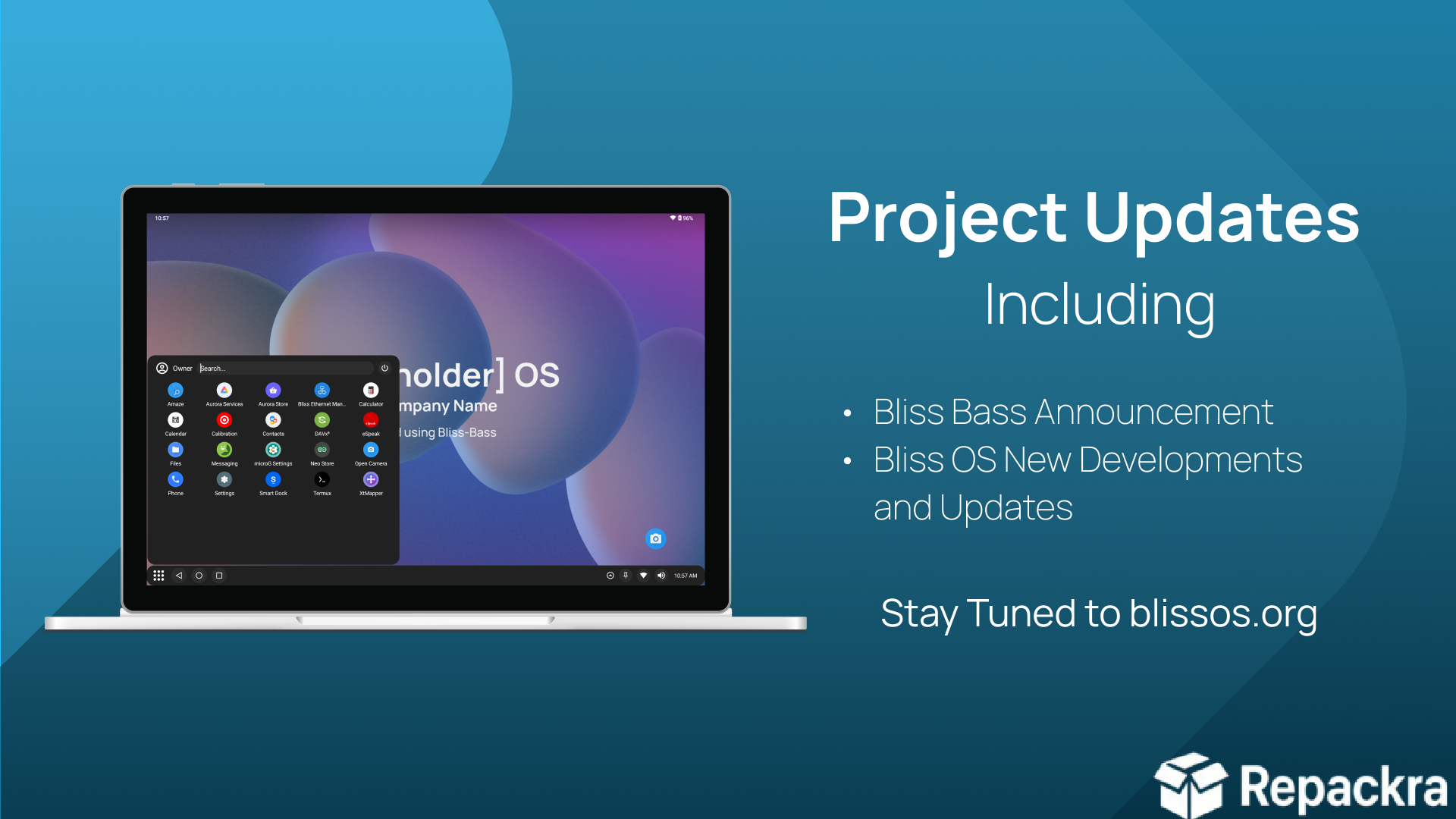
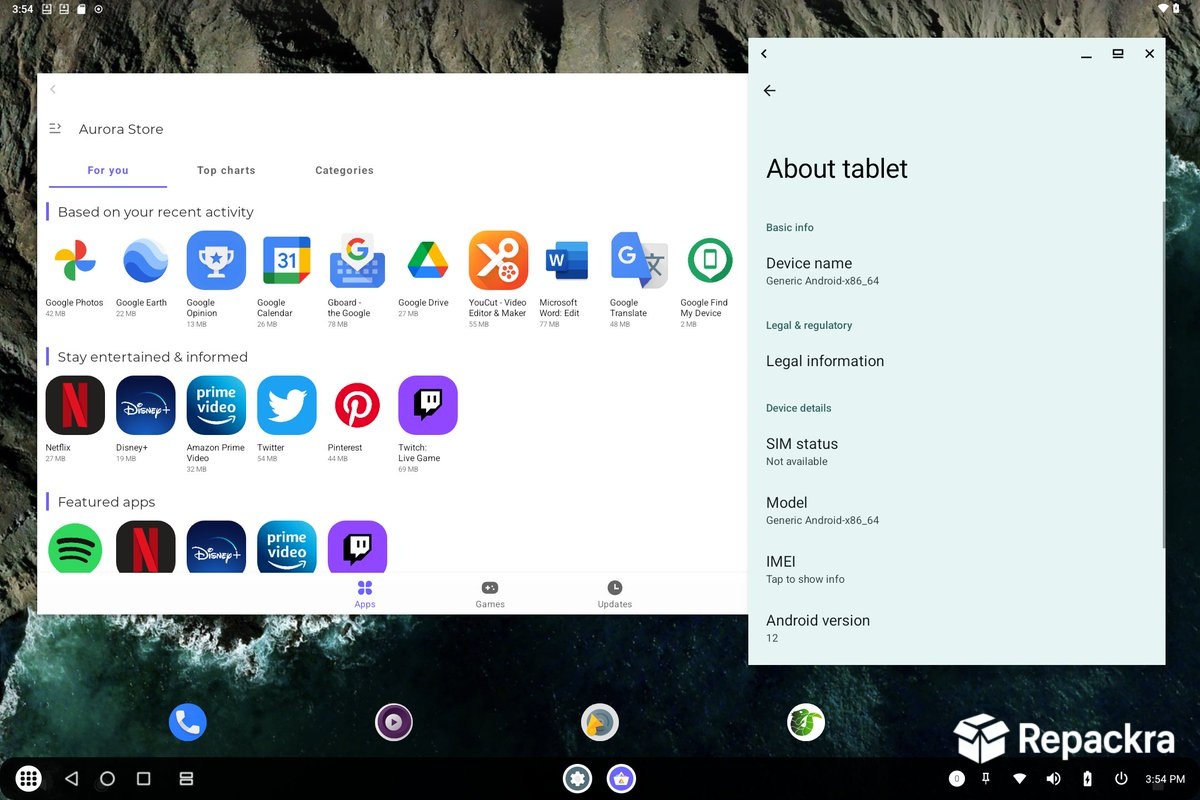
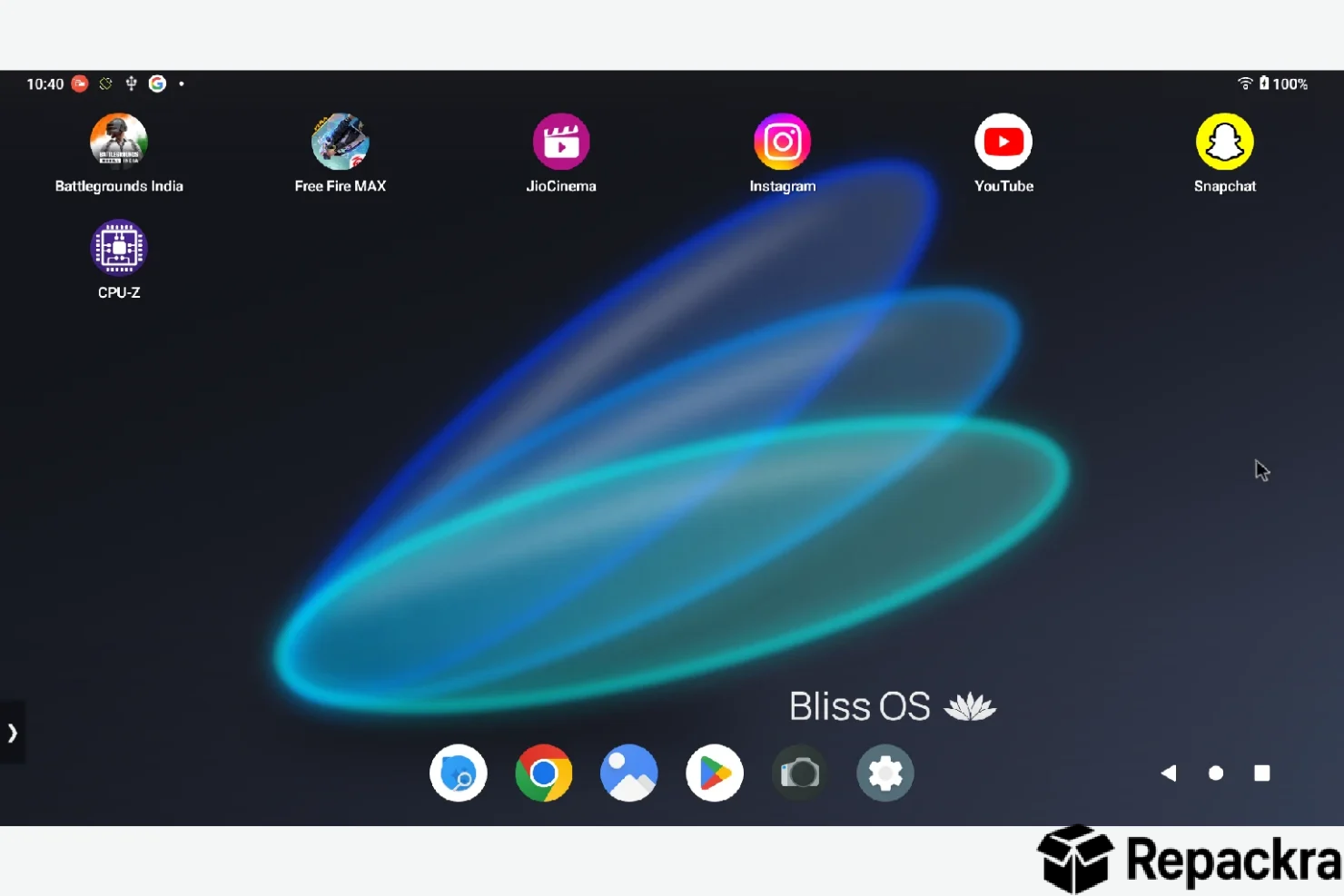
Bliss OS is one of those projects that quietly solves a problem most people didn’t even realize they had, running a full Android experience on regular PC hardware. Version 16.9.7 brings a more stable and polished build that makes the whole thing feel surprisingly close to using an actual Android device.
I keep a copy around because being able to run Android apps directly on a laptop, without an emulator eating up resources, is genuinely useful more often than you’d expect.
Bliss OS Overview
Bliss OS is an open source Android based operating system built specifically to run on PC hardware rather than phones or tablets. It supports both x86 and ARM architectures and works well as a dual boot option,
a virtual machine guest, or even a daily driver on certain devices. Bliss OS basically takes the Android you already know and adapts it to behave properly on a mouse and keyboard setup.
Users who want to run it inside a safe isolated environment without touching their main system will find VirtualBox for Windows the easiest way to spin up Bliss OS as a virtual machine guest and test it risk free before committing to a full install.
Key Features:
- Full Android experience on PC hardware
- Supports both 32 bit and 64 bit systems
- Works as live boot, dual boot, or virtual machine install
- Access to Google Play Store and Play Services
- Desktop friendly window management for apps
- Multi window and resizable app support
- Regular community driven updates
- Open source and fully customizable
- Lightweight enough for older laptops
- Native mouse and keyboard input support
What’s New in 16.9.7
- Improved hardware compatibility across more devices
- Better Wi-Fi and Bluetooth driver support
- Performance improvements on lower end hardware
- Several bug fixes reported by the community
System Requirements
- 64-bit processor Intel or AMD
- 2 GB RAM minimum, 4 GB recommended
- 8 GB storage space minimum
- USB drive for installation media
- UEFI or legacy BIOS compatible system
How to Install Bliss OS on PC
- Download Bliss OS 16.9.7 ISO 64-bit.
- Flash the ISO to a USB drive using Rufus or Etcher.
- Boot your PC from the USB drive.
- Choose install or live boot from the menu.
- Follow the on screen setup steps.
How to Download Bliss OS for PC
- Visit the official Bliss OS website or SourceForge page.
- Select the 64-bit ISO build.
- Wait for the download to finish.
- Verify the checksum if available.
- Flash to your installation media.
Supported Websites
- Bliss OS Official Website
- SourceForge Official Page
- GitHub Official Repository
- DistroWatch
- XDA Forums
- Softpedia
- 1000+ other trusted sources
Why Use Bliss OS?
What makes Bliss OS genuinely useful is how seamlessly it turns an old laptop or spare PC into something that runs actual Android apps without any of the lag or limitations you’d get from an emulator. Having proper window management and resizable apps makes it feel less like a phone interface stretched onto a monitor and more like an actual desktop experience.
Users who want to repurpose that same older hardware for a proper Linux desktop alongside Bliss OS will find Arch Linux ISO 64-bit a natural companion, giving them complete control over every component of a lightweight and fully customized Linux install on the same machine. The community behind it stays pretty active too, so updates and fixes keep coming.
Bliss OS vs Other Android x86 Projects
| Feature | Bliss OS | Others |
|---|---|---|
| Google Play Store Access | Yes | Limited |
| Desktop Window Management | Yes | No |
| 32 bit and 64 bit Support | Yes | Limited |
| Active Community Updates | Yes | Limited |
| Dual Boot and VM Support | Yes | Limited |








